Build a book tier list from your MyBibliotheca library
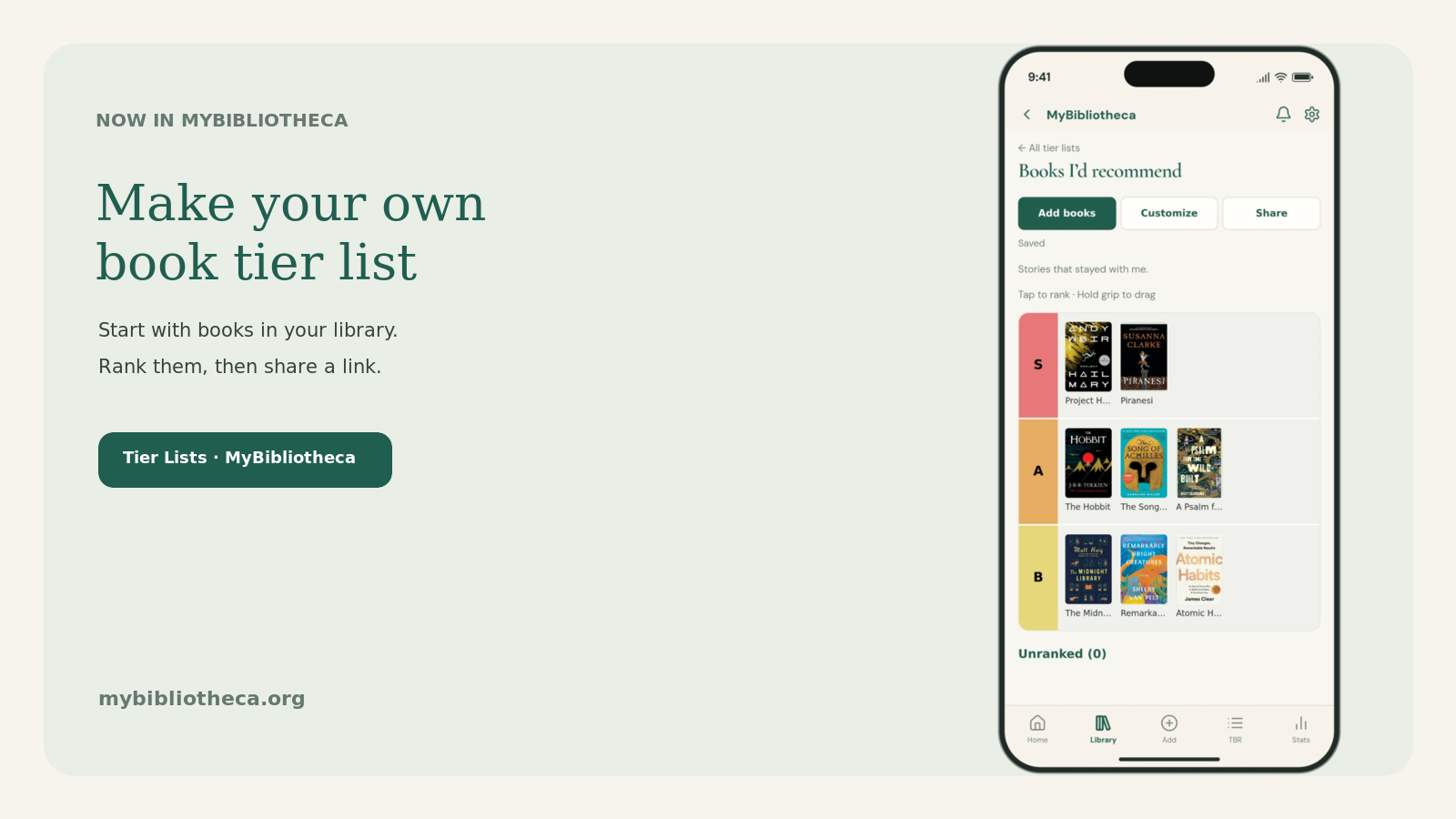
Have a shelf full of favorites and no idea how to rank them? You can now make a book tier list in MyBibliotheca using books that are already in your library.
Start with the books you’ve read
Open Tier Lists from your account menu and create a list. Choose Add books to browse your library, filter by title or author, and select several books at once. There’s no spreadsheet to prepare and no second round of uploading covers. If a book isn’t in your library yet, you can add it through the usual catalogue flow.
The editor starts with S, A, B, C, and D tiers, plus an Unranked pool for books you haven’t placed yet. Drag a cover where you want it, or use the keyboard and tap controls to rank and reorder titles. Rename tiers, change their colors, and add or remove tiers to make the list yours.
Your tier list is separate from your reading record. Moving a book around won’t change its place in your library or delete it from your account. Lists save as you work, and a browser draft can be recovered if a save is interrupted.
Share a link when you’re ready
Lists start private. When you choose to share one, MyBibliotheca makes a public link you can send to a friend or post for other readers. The shared page shows the ranked books and their catalogue details; it doesn’t expose your account, reading history, notes, or unranked books.
You can make the list private again at any time. That disables the current link. If you publish it again later, MyBibliotheca creates a new link, so the old one stays invalid.
Make it your list
Use a list for the books you’d recommend to anyone, your favorite reads this year, or a long-running debate about which series deserves the top spot. You can keep several lists, duplicate one as a starting point, or download a share image of the finished ranking.
Tier Lists are ready in MyBibliotheca. Open your account menu and choose Tier Lists to get started.