MyBibliotheca Blog
Build a book tier list from your MyBibliotheca library

Build a book tier list from your MyBibliotheca library

2 minutes read

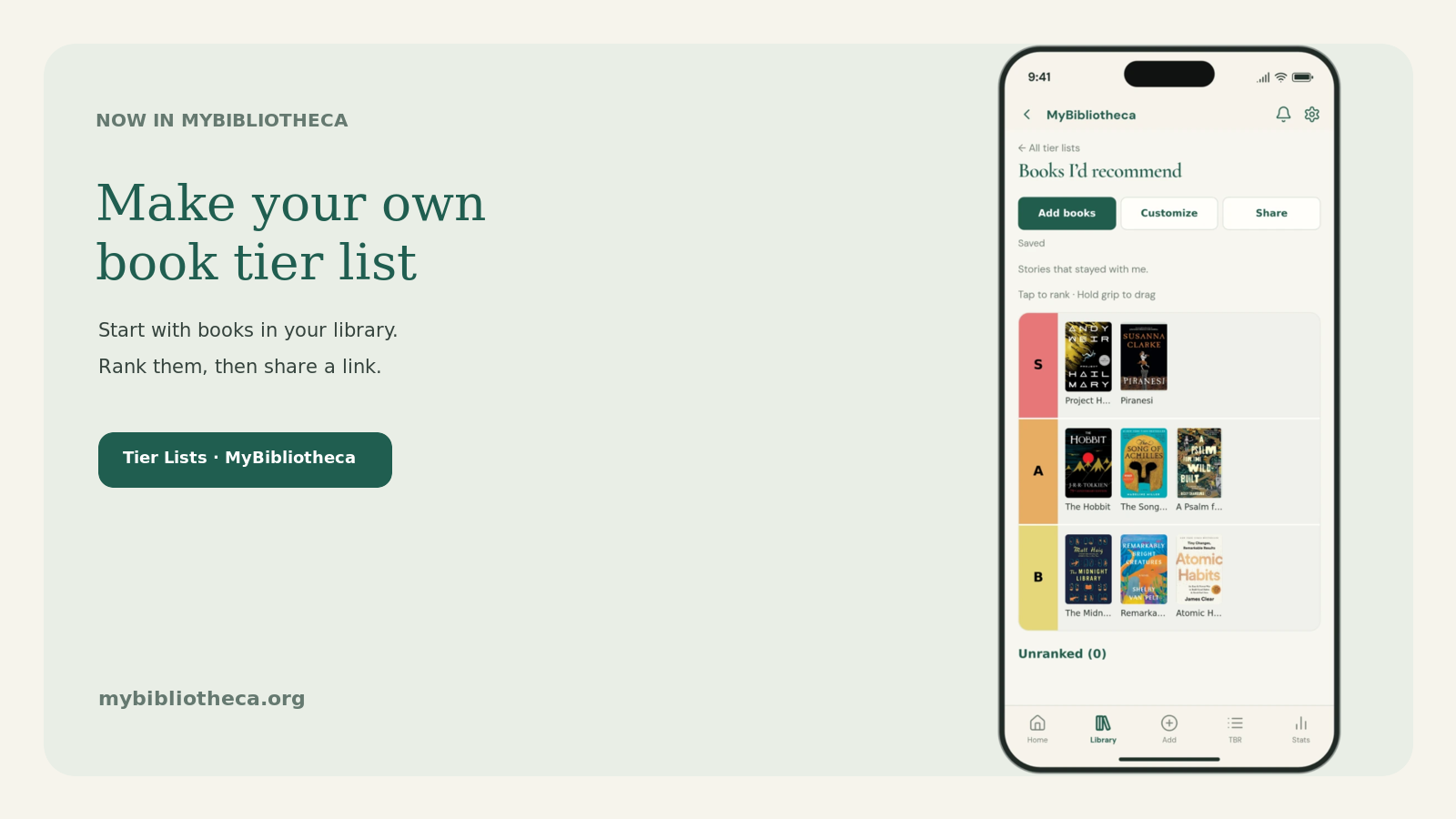
Have a shelf full of favorites and no idea how to rank them? You can now make a book tier list in MyBibliotheca using books that are already in your library.

Start with the books you’ve read

Open Tier Lists from your account menu and create a list. Choose Add books to browse your library, filter by title or author, and select several books at once. There’s no spreadsheet to prepare and no second round of uploading covers. If a book isn’t in your library yet, you can add it through the usual catalogue flow.

The editor starts with S, A, B, C, and D tiers, plus an Unranked pool for books you haven’t placed yet. Drag a cover where you want it, or use the keyboard and tap controls to rank and reorder titles. Rename tiers, change their colors, and add or remove tiers to make the list yours.

Your tier list is separate from your reading record. Moving a book around won’t change its place in your library or delete it from your account. Lists save as you work, and a browser draft can be recovered if a save is interrupted.

Share a link when you’re ready

Lists start private. When you choose to share one, MyBibliotheca makes a public link you can send to a friend or post for other readers. The shared page shows the ranked books and their catalogue details; it doesn’t expose your account, reading history, notes, or unranked books.

You can make the list private again at any time. That disables the current link. If you publish it again later, MyBibliotheca creates a new link, so the old one stays invalid.

Make it your list

Use a list for the books you’d recommend to anyone, your favorite reads this year, or a long-running debate about which series deserves the top spot. You can keep several lists, duplicate one as a starting point, or download a share image of the finished ranking.

Tier Lists are ready in MyBibliotheca. Open your account menu and choose Tier Lists to get started.

MyBibliotheca Comes to iOS: Join the TestFlight Beta

MyBibliotheca Comes to iOS: Join the TestFlight Beta

7 minutes read

Your next chapter can start on your iPhone. The MyBibliotheca iOS beta is available through TestFlight, bringing your library, reading journal, audiobook tracking, and TBR into a dedicated app for iPhone and iPad.

Already have a MyBibliotheca account? Use it in the app. The books you added on the website and the reading history you have built belong to that account, so you can pick up where you left off.

Join the MyBibliotheca iOS beta on TestFlight.

A familiar reading space, made for your phone

The iOS app puts Home, Library, Add, TBR, and Stats within reach through native tabs. Notifications and Settings sit in the toolbar, and Back navigation helps you return to the page you were just using.

That means fewer steps between opening the app and doing the thing you came for: logging a chapter, checking your queue, adding a recommendation, or looking at your month in books.

The app connects to the same MyBibliotheca account as the website. Saved changes carry across when you return to your library in a browser or on another device.

Keep every format in one reading journal

A paperback on the nightstand, an ebook in your bag, and an audiobook for the commute can all share the same journal.

Record pages, reading sessions, and listening minutes. Track your position or completion percentage, keep start and finish dates, and leave a note about a session you want to remember. Audiobook duration and progress sit alongside your print and ebook records.

MyBibliotheca helps you keep track of what you read and hear. You continue to enjoy the books themselves in your usual reading and listening apps.

Make room for what comes next

Your TBR can hold more than a title. Add priorities, mood tags, and a reminder of why a book caught your attention. Separate your wider Plan to read collection from the books you want Up next.

Private lists, custom bookshelves, and series information help you find your way around the collection. Whether you are choosing a short weekend read or returning to a favorite author, a little context makes the decision easier.

Bring your existing library along

If your reading history lives in Goodreads or StoryGraph, you can import a supported CSV and review the column mapping before bringing it into MyBibliotheca. Supported fields include books, reading statuses, ratings, notes, and reading dates.

If you have already imported that history into your account, it is ready when you sign in on iOS. Installing the app does not require importing it again.

Our library import guide walks through the supported fields and steps.

Save the ideas that stay with you

Keep private notes, reviews, and highlights with the books they belong to. The notes editor offers simple formatting, so a reading journal can be comfortable to write as well as useful to revisit.

You can also connect Readwise, set up KOReader progress sync, or use the KOReader highlights plugin. Each integration needs its own setup; existing connections belong to your account and remain available when you use the iOS app.

For readers collecting new words, Vocabulary brings together single-word highlights for practice with English definitions and recall choices.

See your reading life take shape

Stats help you look beyond the number of books finished. Revisit reading activity, streaks, pages, listening minutes, and monthly progress. Year in Reading gives you another way to reflect on the books and patterns that shaped your year.

When you want to share something, recap cards let you choose a moment from your reading without opening up your whole library.

Your account stays private by default. MyBibliotheca is ad-free, and you can export your library and reading records when you want a copy of your own.

Install the iOS beta with TestFlight

TestFlight is Apple's app for installing and testing beta releases. That is how to get the MyBibliotheca iOS beta today.

  1. Install TestFlight from the App Store on your iPhone or iPad.
  2. Open the MyBibliotheca beta invitation on that device.
  3. Follow the invitation to accept the beta and install MyBibliotheca. TestFlight shows the available build and device requirements.
  4. Open MyBibliotheca and sign in with your existing account, or create one if you are new.
  5. Add your current book, log a session, or explore the library you already have.

Beta builds are available for a limited testing period. Keep an eye on TestFlight for updates; you can also enable automatic updates there. Apple explains installation, build expiry, and feedback in its TestFlight guide.

Help shape the iOS experience

We would love to hear how the app fits into your everyday reading. Try adding a book, recording an audiobook session, moving through your TBR, and revisiting your notes on the device you normally use.

If something looks wrong or feels awkward, send feedback through TestFlight or report an issue in MyBibliotheca while signed in. Include the device, the build shown in the app, and the steps that led to the problem. Check screenshots for personal information before sending them.

The Help Center is also available if you need help getting started. And the website remains there whenever you want to use MyBibliotheca from a browser.

Try MyBibliotheca on iOS through TestFlight.

Your reading journal should make space for the way you actually read. Thank you for helping us bring that experience to iPhone and iPad.

Your books. Your data. Your pace.

Made independently in Minnesota.

Apple, iPhone, iPad, App Store, and TestFlight are trademarks of Apple Inc.

MyBibliotheca Is on Google Play: Your Private Reading Tracker for Android

MyBibliotheca Is on Google Play: Your Private Reading Tracker for Android

7 minutes read

Your reading life now has a home on Android. MyBibliotheca is on Google Play, bringing your private library, reading journal, audiobook progress, and TBR queue into a dedicated app.

If you already use MyBibliotheca on the web, sign in with the same account. Your books and reading history are already there. There is no second library to maintain and no new import to run just because you installed the app.

Get MyBibliotheca on Google Play.

The same reading life, easier to reach

The Android app brings MyBibliotheca's existing reading tools together with native navigation. Persistent Dashboard, Library, Add, TBR, and Stats tabs keep your everyday destinations close, while toolbar shortcuts take you to Notifications and Settings.

Open your current book, record a session, choose what to read next, or look back at your reading activity without finding your way through a browser menu. The app uses the same MyBibliotheca service as the website, so your saved changes are available when you next open your account on another device.

This is a reading tracker, not an ebook reader or audiobook player. MyBibliotheca keeps the record of your reading; your books and listening apps remain wherever you enjoy them.

Track pages, listening time, and the moments between

Some days you finish a novel. Some days you manage a chapter before bed or twenty minutes of an audiobook on the way home. Both belong in your reading history.

Track hardcovers, paperbacks, ebooks, and audiobooks in one personal library. Log pages and listening minutes, record your current position or percentage complete, and save reading-session notes. Keep start and finish dates so you can return to the books you read and the time you spent with them.

Audiobook tracking sits alongside print and ebook progress, with listening time, duration, and completion percentage. You do not need a separate journal for every format.

Give your TBR more context

A to-be-read list can become a collection of good intentions. MyBibliotheca gives it a little more structure.

Use Plan to read for your wider queue and Up next for the books you are considering soon. Create private lists, choose priorities, arrange your queue, and add mood tags. Save a note about why you added a book: a friend's recommendation, a review, or simply the right story for a particular season.

Filter by author, genre, format, mood, or length when you want a book that fits the moment. Custom bookshelves and series details help keep the rest of your collection organized, too.

Bring the library you already have

Moving to a new book tracker should not mean abandoning years of reading history. MyBibliotheca supports Goodreads, StoryGraph, and other supported CSV imports, with a review step for mapping your columns before the import.

Bring over books, reading statuses, ratings, notes, and reading dates. Already imported your library on the website? Just sign in to the Android app. Those records belong to your account, not to one device.

See the Goodreads and StoryGraph import guide for the supported fields and setup steps.

Keep highlights close to their books

Your reading journal can hold more than a rating. Save private book notes and highlights, then revisit the passages and ideas that stayed with you.

Connect Readwise to import highlights and notes and match them to your library. KOReader progress sync can link ebook positions to your MyBibliotheca reading history and keep locations in sync across configured KOReader devices. A separate MyBibliotheca KOReader plugin brings in highlights and notes.

These integrations require setup in their respective services; installing the Android app does not automatically connect them. Your existing account connections remain available when you sign in.

Learn more about Readwise imports, KOReader progress, and KOReader highlights.

Look back with more than a book count

Explore reading streaks, activity calendars, pages read, audiobook minutes, and monthly progress. Year in Reading brings together finished books, favorite reads, formats, returning authors, and your month-by-month pace.

Shelf Archaeology invites you to revisit unfinished and forgotten books in your own collection. Sometimes your next read is already on your shelf.

When you want to share a moment, create a reading calendar, a finished-book recap, or a monthly or yearly summary. Share a snapshot without making your entire reading history public.

Private by default, still yours to take with you

MyBibliotheca remains private by default and ad-free. There is no social feed to keep up with and no requirement to publish your library. If you choose an optional public reading page, you control whether it includes ratings and your reading streak; private notes stay private.

Export your library and reading logs as CSV, or take highlights and notes with you in Markdown or plain text. Your reading life should remain useful beyond any single app.

Get started on Android

  1. Open MyBibliotheca on Google Play and install the app on a supported device.
  2. Sign in with your existing MyBibliotheca account, or create an account if you are new.
  3. Open your current book, add your next read, or import your library to get started.

Account controls are available in Settings. Sign out is at the bottom of the Profile tab, and the footer shows the installed Android app version to help when reporting a problem.

The website remains available on phones, tablets, and computers. The Android app is another way into the same reading space, not a replacement for it.

Thank you to everyone who has helped shape MyBibliotheca by using it, asking questions, and sharing feedback. You can report an issue or suggest an improvement as you try the app.

Your books. Your data. Your pace.

Made independently in Minnesota.

Google Play and the Google Play logo are trademarks of Google LLC.
A Private Reading Tracker for Books and Audiobooks

A Private Reading Tracker for Books and Audiobooks

2 minutes read

A reading tracker is most useful when it reflects how you actually read. Some days you finish a chapter in print; other days you listen to an audiobook on the way home. MyBibliotheca brings those books and reading sessions into one personal library, with room for your own notes and history.

Five shelves for five reading states

Each book can sit on one of five shelves: Reading, Up next, Plan to read, Finished, or Did not finish (DNF). Up next is for the books you are likely to choose soon. Plan to read can hold the longer list. Moving a book between shelves keeps its notes, rating, and reading history with it.

Keep a useful reading record

Log a current page or percentage when you want to remember your place. Add pages read or minutes listened when you want to record a session total. Those are different kinds of information: a position answers “Where am I?” while a session total records “What did I read today?” You can save either or both.

The same library can hold page based and audiobook progress. Set the format and edition details for a book, and use Reading Timeline to revisit dated sessions and reading milestones. A late night log is assigned to the calendar day in your account timezone.

Start with the library you already have

You can add books one at a time or import a Goodreads, StoryGraph, or other CSV export. Once the library is in place, update a status as you start or finish a book, then log progress when it is helpful. There is no need to record every reading minute for the history to be useful.

MyBibliotheca libraries are private by default. You can make an optional public reading page later and choose whether it includes ratings or a streak. Private notes and your email address stay private.

Explore the guides: Welcome to MyBibliotheca · Reading statuses · Reading logs and progress · Privacy and sharing

The Best Goodreads Alternative for Readers Who Want More Than Shelves and Reviews

The Best Goodreads Alternative for Readers Who Want More Than Shelves and Reviews

2 minutes read

A book list can tell you what you own or hope to read. It cannot tell you what happened during the book. If you want to track pages, listening time, reading sessions, notes, and progress—not just maintain shelves and reviews—MyBibliotheca is a Goodreads alternative built around the details of your reading life. Create a free account and bring your library with you.

More than a list of finished books

A useful reading tracker should make it easy to record a short reading session, continue where you left off, and look back at your activity later. MyBibliotheca tracks books alongside reading progress and sessions, so a finished title is one part of the story rather than the only milestone that counts.

You can keep print and audio titles in one personal library, save private notes, and use reading history to understand your habits over time. Book editions matter too: ISBNs and edition details help you keep the record connected to the version you actually read. Your to-be-read list can also become a practical queue instead of an ever-growing shelf.

Bring your Goodreads library along

Switching trackers does not have to mean starting from an empty shelf. Export your Goodreads library as a CSV and import it into MyBibliotheca. Review the import before adding it, then tidy up statuses or book details as needed. Follow the library import guide for the steps.

After importing, add reading sessions as you go. You can track page progress or audiobook minutes and keep notes with the books they belong to. Your reading history becomes more useful when it captures the small sessions, not only the completion date.

Choose a tracker that fits how you read

Goodreads is familiar for shelves and reviews. If your priority is a more detailed personal record, try a tracker that treats reading as an ongoing activity. Start your free MyBibliotheca library and see how your books, progress, and reading history fit together.