MyBibliotheca Blog
Build a book tier list from your MyBibliotheca library

Build a book tier list from your MyBibliotheca library

2 minutes read

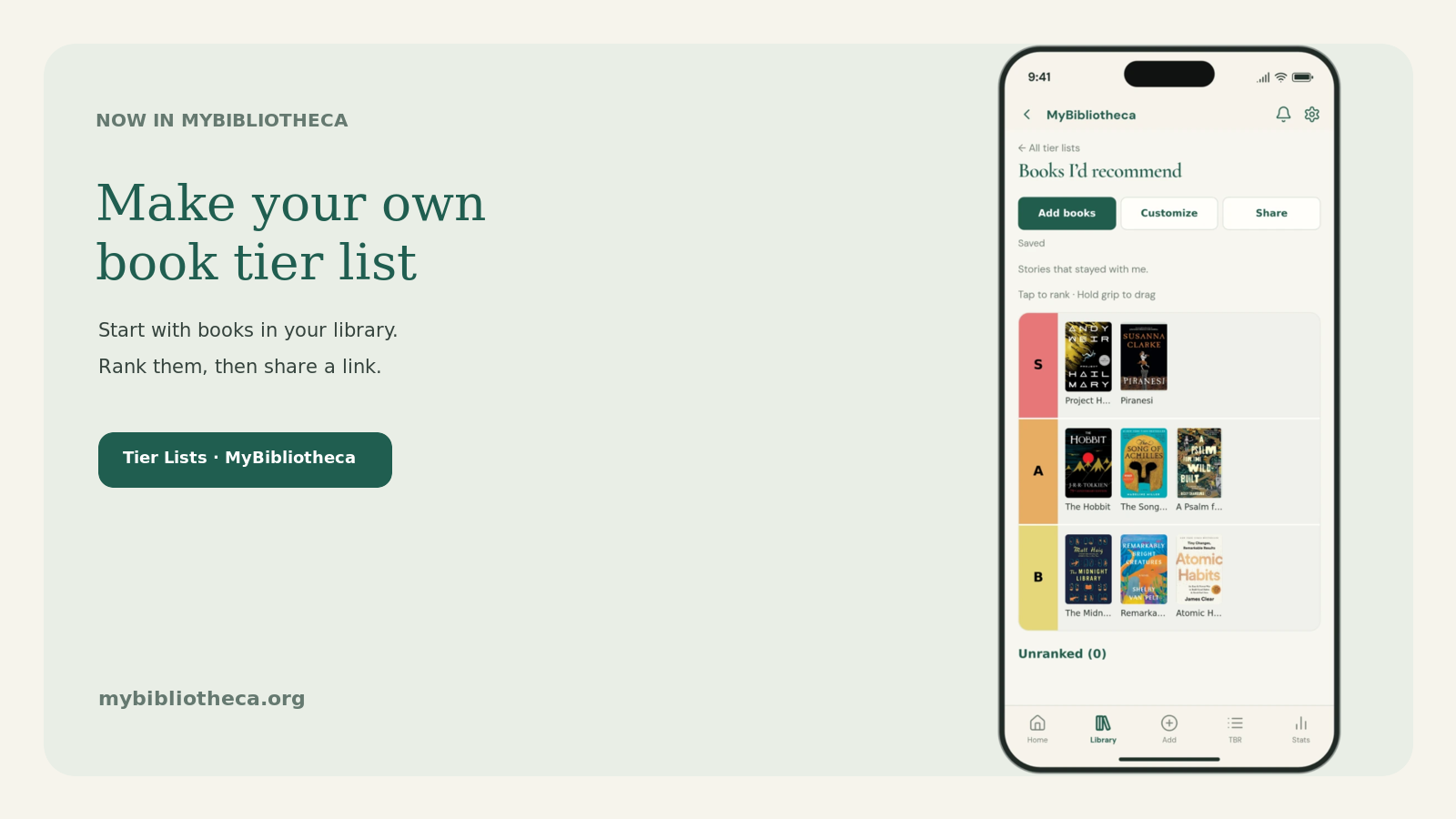
Have a shelf full of favorites and no idea how to rank them? You can now make a book tier list in MyBibliotheca using books that are already in your library.

Start with the books you’ve read

Open Tier Lists from your account menu and create a list. Choose Add books to browse your library, filter by title or author, and select several books at once. There’s no spreadsheet to prepare and no second round of uploading covers. If a book isn’t in your library yet, you can add it through the usual catalogue flow.

The editor starts with S, A, B, C, and D tiers, plus an Unranked pool for books you haven’t placed yet. Drag a cover where you want it, or use the keyboard and tap controls to rank and reorder titles. Rename tiers, change their colors, and add or remove tiers to make the list yours.

Your tier list is separate from your reading record. Moving a book around won’t change its place in your library or delete it from your account. Lists save as you work, and a browser draft can be recovered if a save is interrupted.

Share a link when you’re ready

Lists start private. When you choose to share one, MyBibliotheca makes a public link you can send to a friend or post for other readers. The shared page shows the ranked books and their catalogue details; it doesn’t expose your account, reading history, notes, or unranked books.

You can make the list private again at any time. That disables the current link. If you publish it again later, MyBibliotheca creates a new link, so the old one stays invalid.

Make it your list

Use a list for the books you’d recommend to anyone, your favorite reads this year, or a long-running debate about which series deserves the top spot. You can keep several lists, duplicate one as a starting point, or download a share image of the finished ranking.

Tier Lists are ready in MyBibliotheca. Open your account menu and choose Tier Lists to get started.
Turn Your TBR into a Reading Queue You Can Use

Turn Your TBR into a Reading Queue You Can Use

2 minutes read

A long to be read list can make it harder to choose your next book. MyBibliotheca’s My TBR workspace gives unread books a little more structure while keeping them in the same library.

Keep the long list and short list distinct

My TBR includes books on Plan to read and Up next. Plan to read is the wider queue; Up next is the smaller set you are most likely to reach for. Reading, Finished, and DNF books stay out of this workspace. Moving a book back to an unread shelf restores its saved TBR details.

Add context to books you saved

Set a priority, add a mood such as Cozy or Adventurous, or write a short note about why you added the book. Create private lists for a book club, a season, or recommendations from friends. A book can appear in several lists without creating duplicate library records. These details stay private to your account.

Filters can combine shelf, list, genre, length, mood, format, or author. Sort the results by priority, title, date added, or your own manual order. On a phone or with a keyboard, Move up and Move down can reorder the queue; desktop users can also drag books.

When you want a nudge, set the filters you want My TBR to respect and choose Pick my next book. You can also ask MyBibliotheca for three suggestions based on books in your library; a suggestion you choose is added to Plan to read.

A focused view, not a second library

My TBR is a working view of books you have not started. Your reading statuses remain the main organization, and your lists do not copy or remove books.

Learn how to use it: Organize your TBR with My TBR · Organize books with reading statuses · Get recommendations from recent reads

Get Book Recommendations from Your Recent Reads

Get Book Recommendations from Your Recent Reads

2 minutes read

Choosing the next book can be the hardest part of finishing one. MyBibliotheca’s Suggest a book option uses recent books from your library to request three ideas, each with a reason to consider it. You can review the suggestions and add one to Plan to read when it sounds right.

Start from your own library

Open Suggest a book from the Dashboard or My library. MyBibliotheca uses recent books in your collection as the basis for the suggestions. The three results are ideas to review, not automatic additions to your shelves. Choose Add to library only for a book you want to keep in your reading queue.

A recommendation you add goes to Plan to read. Its title and author come from the suggestion, and a cover is included when one is available. You can edit the title, author, status, cover, rating, and notes afterward.

Keep your next read list organized

Plan to read is the broader list of books you might want later. Move an especially appealing title to Up next when you want it closer at hand. My TBR can hold private lists, priorities, and moods to help you sort the queue.

There is no need to accept every suggestion. My TBR also includes a Pick my next book option that chooses among your unread books and respects the filters you set.

Related features: Get recommendations from your recent reads · Organize your TBR with My TBR · Reading statuses