Audio Notes: Record and Transcribe Your Thoughts About a Book
3 minutes read
MyBibliotheca now lets you record audio notes on a book. Open a book, press record, say what you think, and the note is saved next to your written notes. If you would rather have it as text, one button turns it into an entry in your notes.
Recording a note
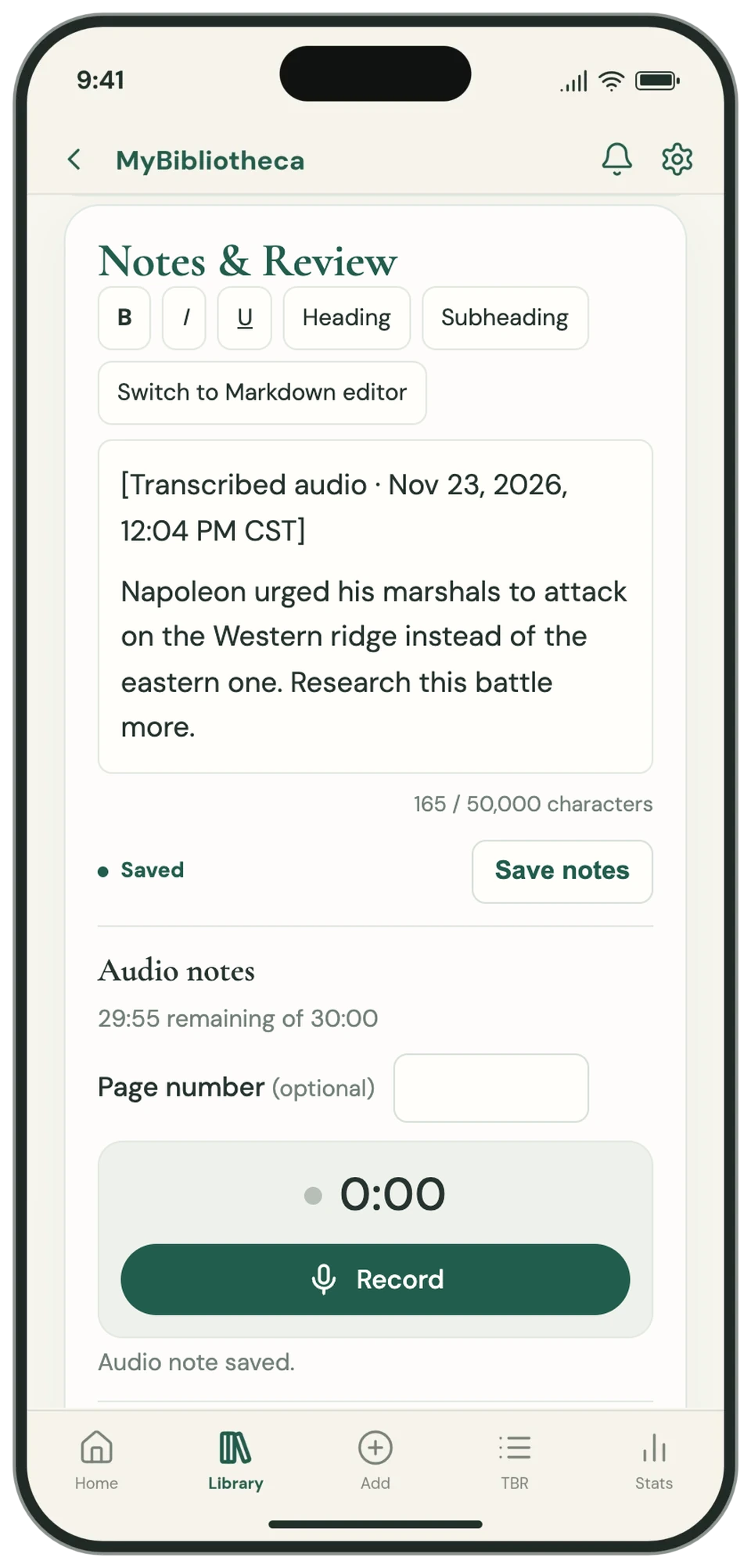
Audio notes sit under Notes & Review on every book page. If the note is about a particular spot in the book, type the page number. Then press Record and talk. Your browser will ask for microphone access the first time.
There is a pause button, so you can stop to think without ending the note. Time you spend paused is not counted. When you are done, press Stop, then Save recording, or Discard if it was not worth keeping.
Each book has 30 minutes of audio notes in total, and the page shows how much you have left. Every saved note shows the date and time you recorded it, and you can play it back or delete it from the same list.
If the tab closes or your connection drops before you save, the recording stays on your device and is offered back to you the next time you open the book.
Turning it into text
Every saved note has a Transcribe button. Press it and the recording goes into a queue that handles one at a time. When yours is done you get a notification, and the text is added to that book's notes under a heading with the date, time and page number. After that it is ordinary text that you can edit. If the book is open when the transcript finishes, it shows up in your notes without a reload.
The transcribing is done by a small speech recognition model that runs on our own servers, so your audio is not sent to another company. Because the model is small, it makes mistakes, mostly with names and unusual words. Read the result before you rely on it.
Privacy
Audio notes are private to your account. Recordings are kept in private storage, and each time one is played the site checks that you are signed in as the person who saved it. They do not appear on a public profile. If you delete a note, it stops playing right away and the file is removed from storage shortly after. The privacy policy has the details.
Apps
Audio notes work in your browser now. Recording in the iOS and Android apps needs an app update that is not out yet, so for now, use the browser on your phone.
To try it, open a book in your library and look under Notes & Review. If you are new here, start your reading journal with whatever you are reading now.
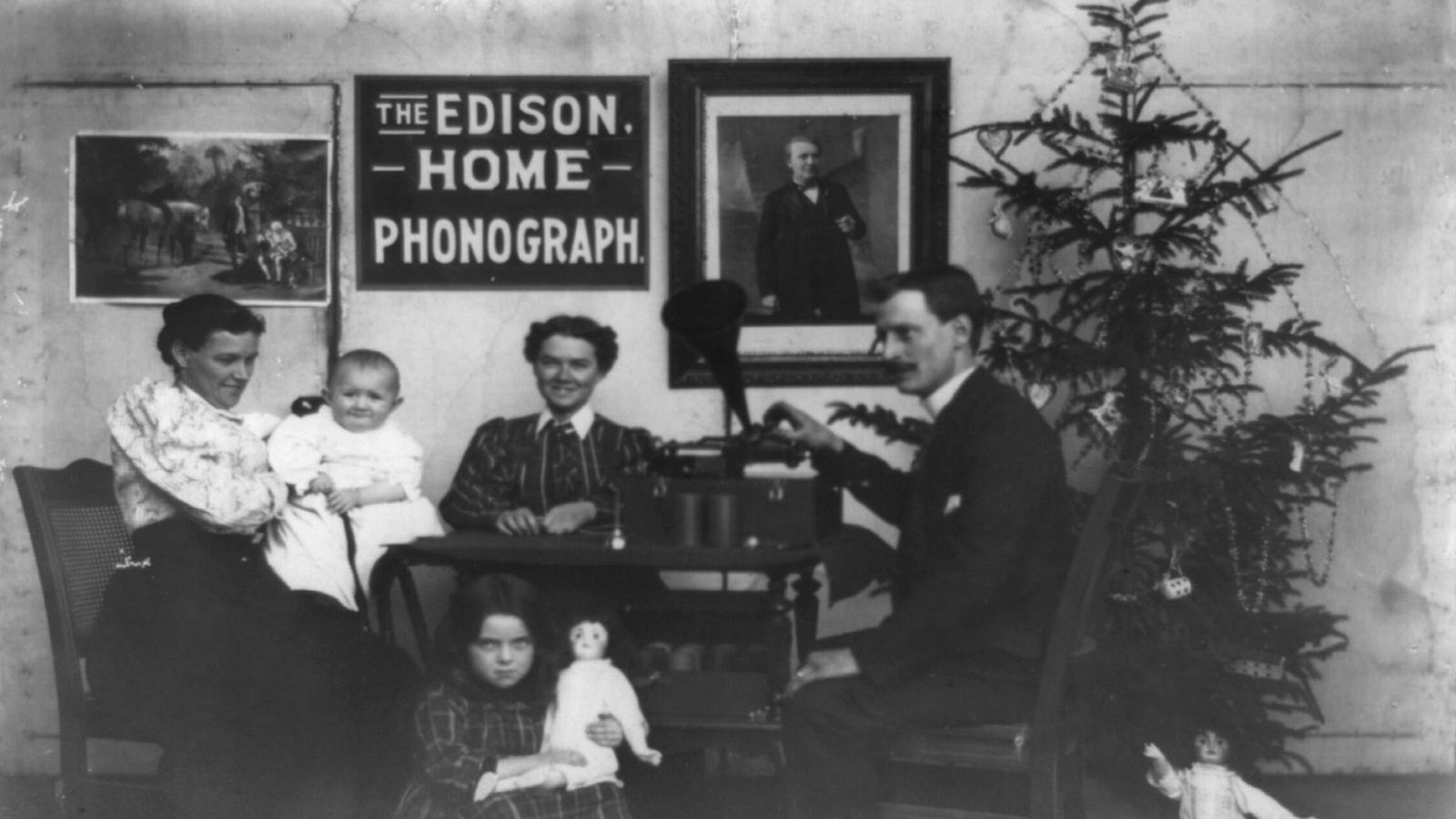
Feature image: Unknown photographer, Man, two women and two children listening to phonograph, 1897. Library of Congress, Prints and Photographs Division. Public domain. Image and rights information.