A 700-page paperback can show up as 1,700 pages on your e-reader. Change the font size or the margins and the number changes again. That's fine for reading, but it can make your stats look bigger than your reading really was. So we added a small, optional setting that keeps your numbers accurate: Pages on my e-reader.
Why we added it
E-readers don't have fixed pages. They re-flow the text to fit your screen, your font and your margins, so every setup produces a different page count for the same book. A paperback has one page count, and it's the same for everyone.
Your reading stats count pages. If a 700-page book is logged as 1,700 pages because you read it on an e-reader, your pages read look more than twice as big as they are. Your totals, your heatmap and your year in reading would all lean toward whichever format you happened to use.
Now you can tell MyBibliotheca how many pages your e-reader shows. When you log a session on it, we keep the page numbers you see and also work out the matching share of the print edition. Your stats count that print figure, so pages read stay accurate and comparable across paperbacks, hardcovers and ebooks.
For example, reading 100 pages on an e-reader that shows 1,700 for a 700-page book counts as about 41 pages in your stats. It's the same share of the story either way.
Set it up in three steps
- Step 1. Set up your e-reader first. Choose the font, text size and margins you like to read with. The page total depends on them, so do this before anything else.
- Step 2. Enter the last page your e-reader shows, once. The first time you log a session on an ebook, the form asks "Last page on your e-reader." Type it there. You can also add it any time on the book's Details tab, in the book information section, as Pages on my e-reader next to Reading format. Jump to the end of the book, or check the progress bar or book menu, to find the number.
- Step 3. Log as usual. Type the page you see on your e-reader, or use the percentage box. Your progress bar follows your e-reader's pages, and your stats get the converted number.
Here is where the two fields sit on the book's Details tab. Edition page count stays the print count, and Pages on my e-reader goes beside Reading format:
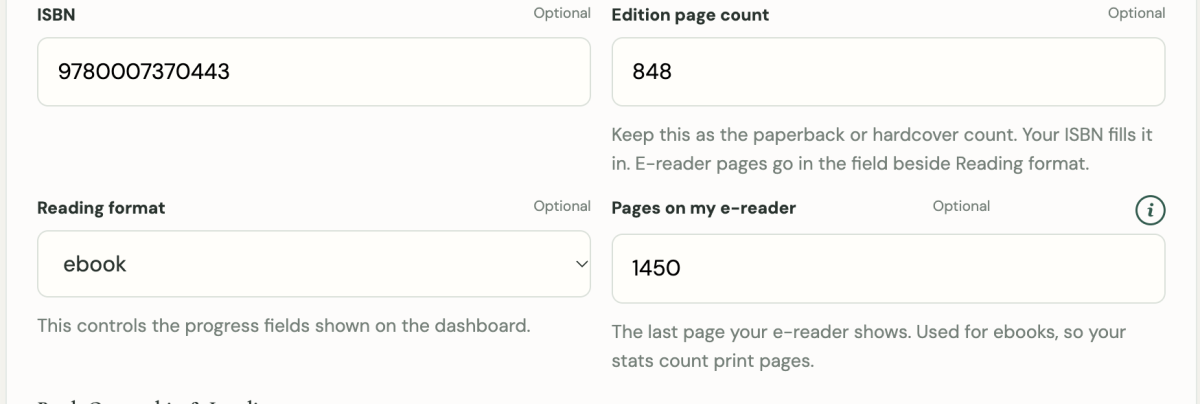
Tap the small i next to the field any time to see this explained inside the app.
What you'll see
Once you've logged a session, Your progress on the book page shows your place on your e-reader and the matching spot in the print edition:
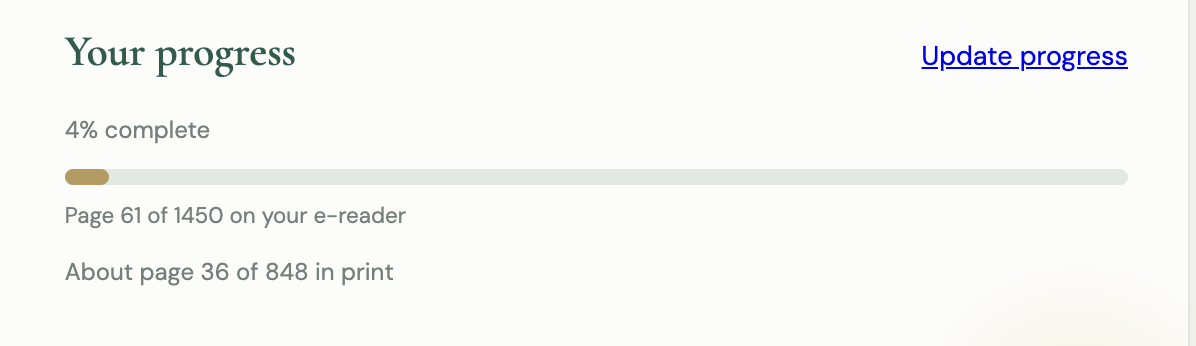
Your e-reader's pages are what you type and what the progress bar follows. The print line is a quick way to see where you'd be in the paperback.
Keep Edition page count as the print count
Leave Edition page count as the paperback or hardcover number. Your ISBN usually fills it in, and it is the number we convert to. Your e-reader's total goes in its own field. If you put your e-reader's total in both places, there's nothing to convert, and your stats stay as they were.
What changes, and what doesn't
- Only books you set up. Nothing changes unless you add an e-reader total to a book. Books without one count exactly as before.
- Only new sessions. Sessions you've already logged keep their numbers. We don't rewrite your history.
- Only ebooks. The conversion applies to books whose reading format is ebook. Paperback and hardcover sessions count exactly as you type them.
- Audiobooks aren't affected. They use minutes.
- KOReader sync works too. If you sync with KOReader, its progress is measured against your e-reader total, and those sessions are converted as well.
- You always see what you typed. Session lists and a book's activity show your own page numbers. The conversion is used for the totals behind your stats, calendar and heatmap, your recaps and share cards, and the home screen widgets.
Troubleshooting
My progress doesn't match my e-reader. Check that the total in Pages on my e-reader is the same number your e-reader shows right now. If it isn't, update it.
I changed my font or margins. Your page total changed too. Update Pages on my e-reader. Sessions you've already logged keep the numbers they had, and new ones use the new total.
I get "Current page must be at or before page...". You've entered a page past the total. Either the total is too low or the page is a typo. Check the field and try again.
My stats still look the same. Make sure the book's reading format is Ebook and that it has both an Edition page count and Pages on my e-reader. Without a print page count, there's nothing to convert to, so the pages count as typed. Sessions you logged before adding the total also stay as they were.
I read the paperback this time. A book has one reading format. If you switch to the paperback, change the book's Reading format to paperback, and new sessions count as typed. You can switch back to ebook later, and your e-reader total will still be there.
I want to stop converting. Clear the Pages on my e-reader field. New sessions go back to counting as typed, and your saved sessions stay as they are.
If something still looks off, contact us and tell us the book and what you see. We read every message.
You can learn more about MyBibliotheca and how it tracks your reading.
Feature image: Daniel Marot the Elder, "Interior of a Library," from Nouveaux Liure da Partements, published 1703 or 1712. The Metropolitan Museum of Art, Open Access (public domain, CC0). View the artwork and rights information.