Install the plugin
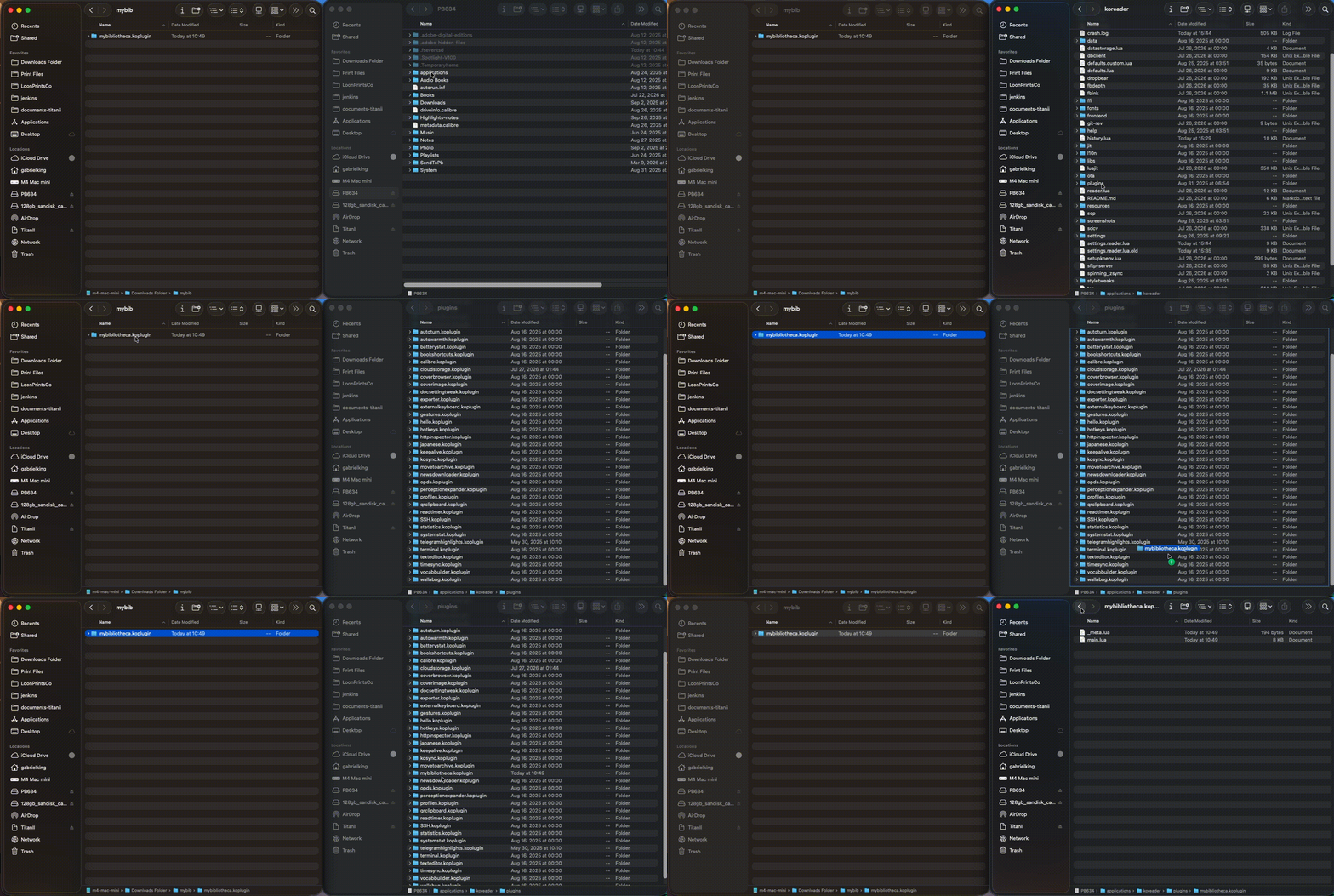
The MyBibliotheca plugin sends highlights directly from KOReader to your MyBibliotheca account. It is separate from Readwise and does not send your annotations through another service.
Download the KOReader plugin from GitHub Releases →
- Download the latest plugin release from GitHub and extract the mybibliotheca.koplugin folder.
- Connect your e-reader to a computer, or use a file-transfer method available on your device, and open KOReader's folder.
- Copy the complete mybibliotheca.koplugin folder into the KOReader plugins folder. The final path should end in koreader/plugins/mybibliotheca.koplugin/main.lua; avoid adding an extra nested folder level.
- Safely disconnect the device, then fully close and restart KOReader so it discovers the new plugin.
Good to know: The plugin folder must stay named mybibliotheca.koplugin. Do not copy only main.lua or leave the plugin nested inside a second folder.
Find MyBibliotheca in KOReader
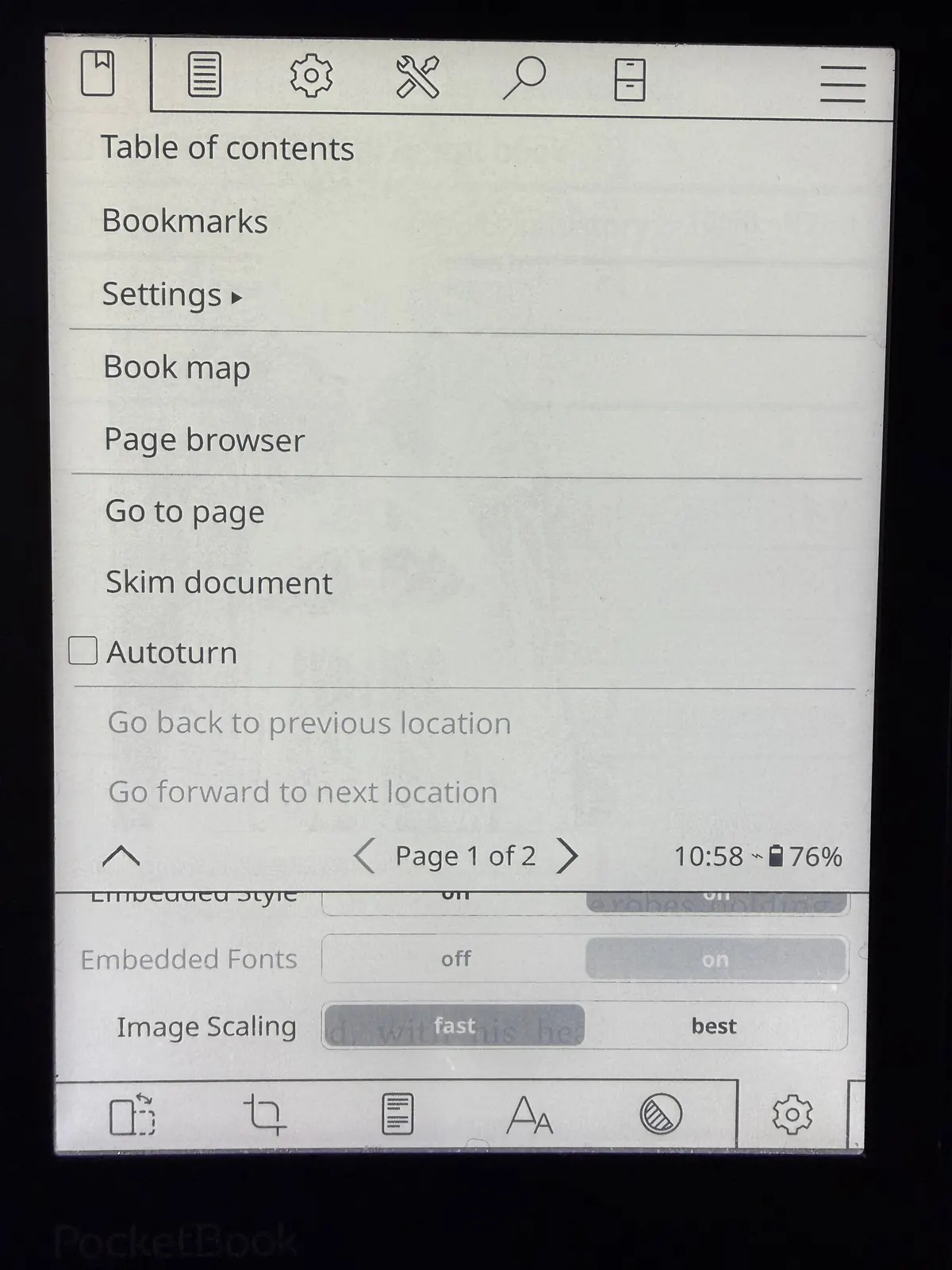
Open any book in KOReader. Open the reader menu, then go to the plugin or tools area and choose MyBibliotheca highlights. Menu labels can vary a little between KOReader versions and device layouts.
- If MyBibliotheca highlights is not listed, confirm the plugin folder is in the correct plugins directory and restart KOReader again.
- Choose Configure connection before the first upload.
Open the plugin actions
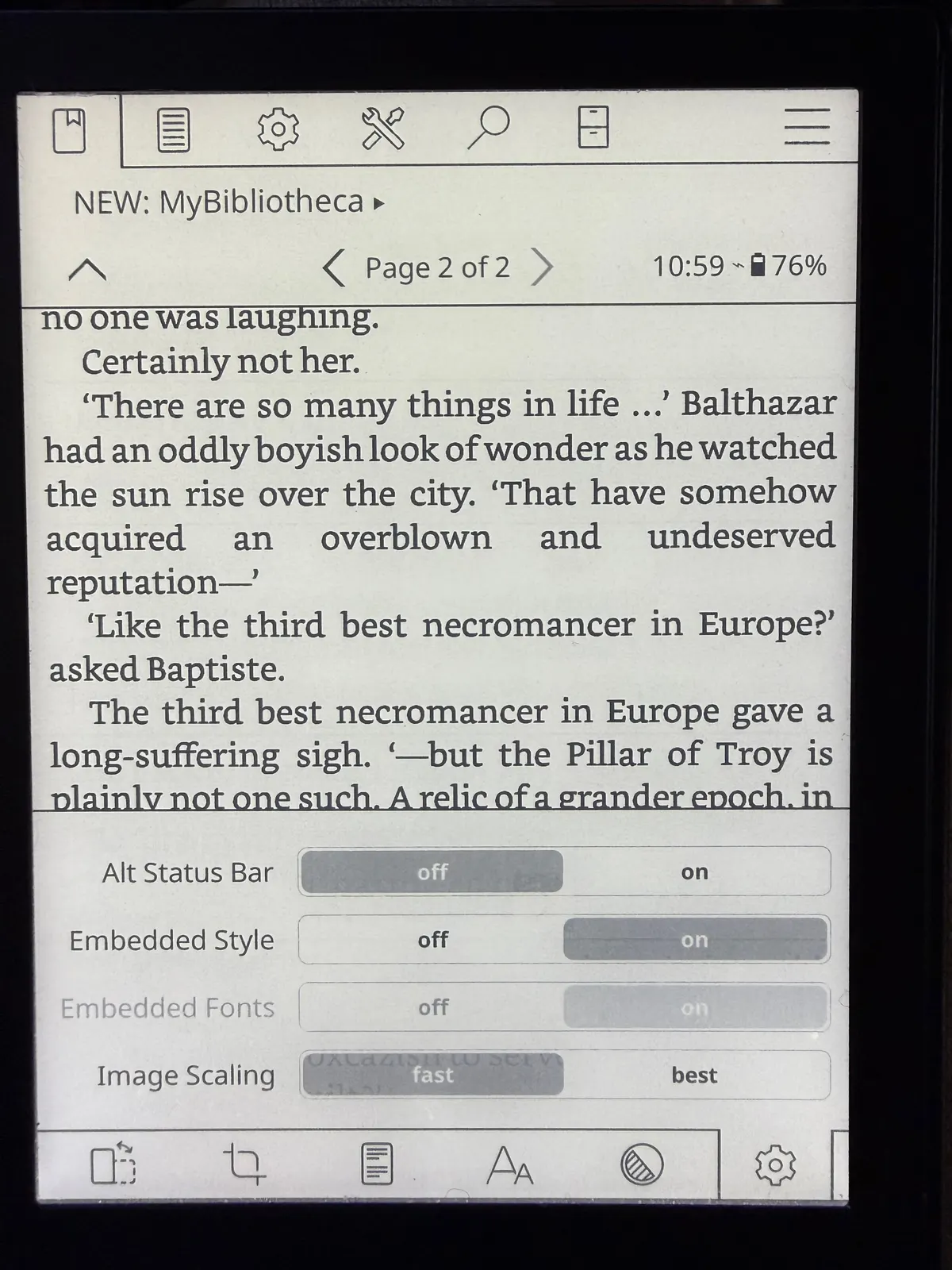
Select MyBibliotheca highlights from KOReader's plugin menu to open its available actions. Choose Configure connection for setup, or use the send action when a book is ready.
Create KOReader credentials in MyBibliotheca
- In MyBibliotheca, open Settings and find the KOReader sync credentials section.
- Enable KOReader sync if it is not already enabled, then create a sync username and password and save them. These are separate from your MyBibliotheca sign-in credentials.
- Keep the sync username and password available while configuring the plugin. If you rotate the KOReader password later, update the plugin on each device too.
Keep in mind: The highlights plugin uses the same dedicated KOReader credentials as progress sync. It does not use your website password or require a Readwise account.
Configure the connection
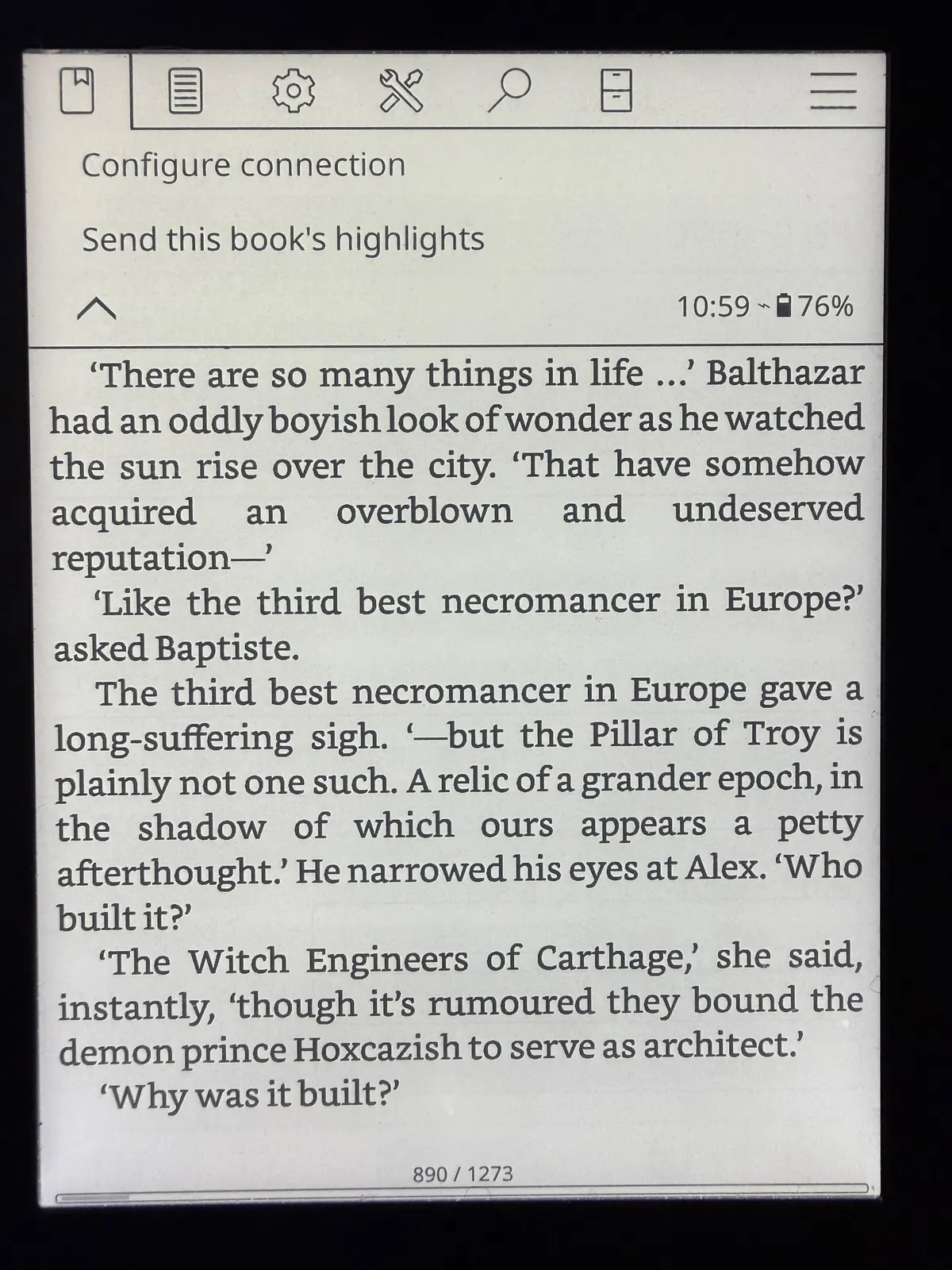
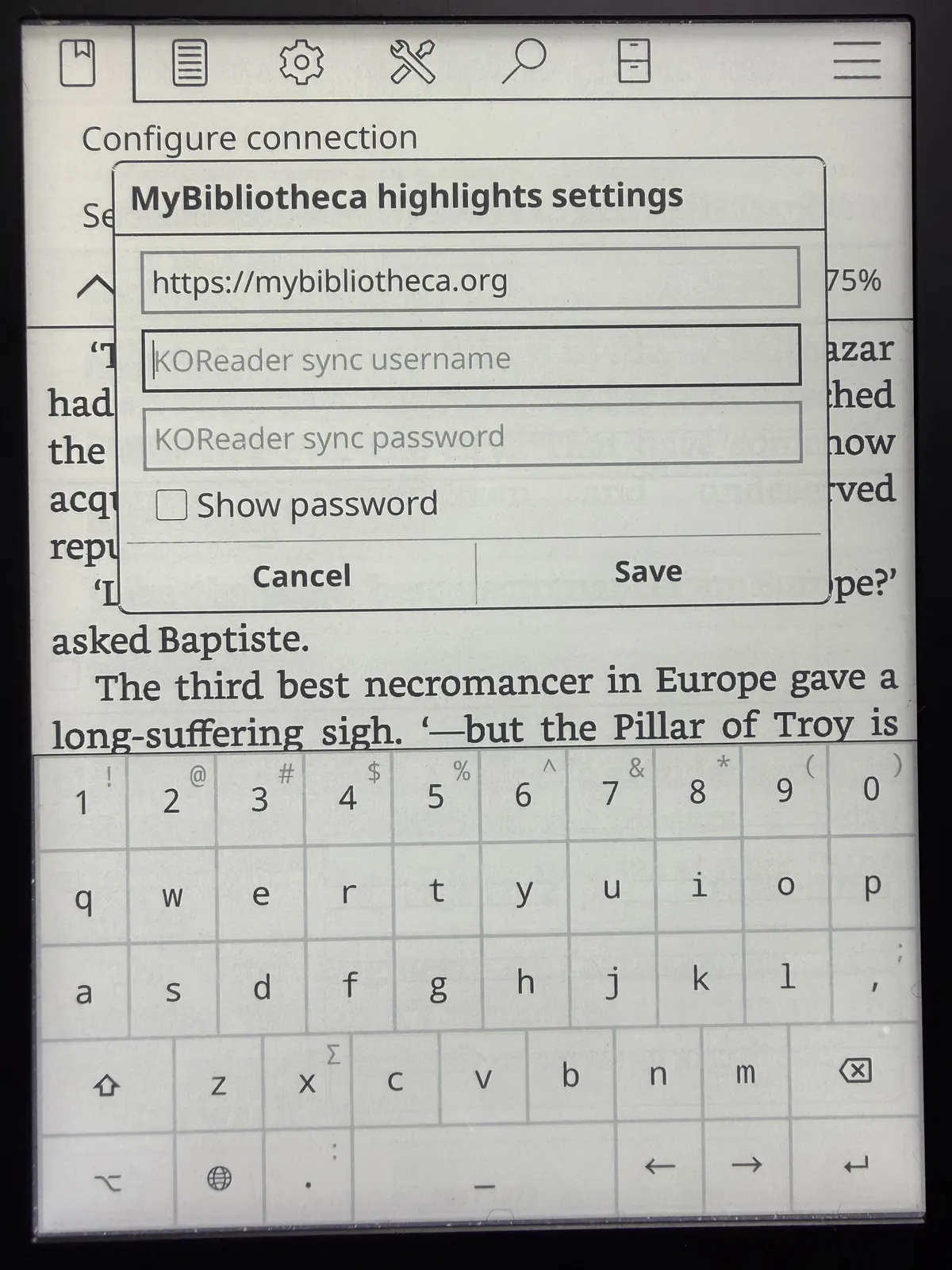
On the device, choose Configure connection in the MyBibliotheca highlights plugin. Enter the full notes endpoint and the KOReader sync credentials you just created.
- For the MyBibliotheca service, enter https://mybibliotheca.org/notes as the server URL. Keep the https:// prefix and the /notes ending.
- Enter your KOReader sync username and password, then save the connection settings.
- If you use a self-hosted MyBibliotheca server, replace the host with your own public HTTPS address and keep /notes at the end.
Good to know: The plugin stores the derived KOReader sync key on the device rather than saving the plaintext password.
Send this book's highlights
Open the book whose annotations you want to send, then launch the MyBibliotheca highlights plugin and choose its send-this-book action. KOReader reads the highlights and notes saved for the current document and uploads them to your account.
- Make sure the device is online, then open the book in KOReader.
- Open the MyBibliotheca highlights plugin and choose Send this book's highlights.
- Wait for the plugin's success or error message. If it reports a connection or sign-in problem, recheck the server URL and KOReader credentials in Configure connection.
- Open the matching book in MyBibliotheca and look for its Highlights and notes section.
Confirm the upload

A successful upload displays a confirmation on the KOReader screen. The count reports how many highlights and notes were accepted for this book.
View highlights and notes in MyBibliotheca
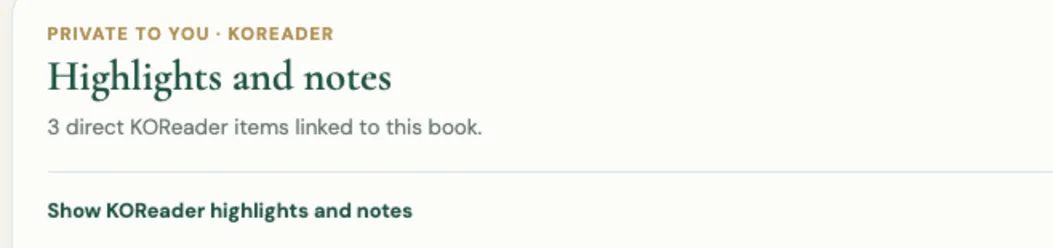
Open the linked book's detail page in MyBibliotheca. Its private Highlights and notes area shows the count of KOReader items linked to that book; expand the section to view the annotations.
Match a book that was not linked automatically
MyBibliotheca links an uploaded KOReader document automatically only when its title and author identify exactly one book in your library. If a title is ambiguous or does not match, the annotations remain private in your account until you choose the correct book.
- In MyBibliotheca, open Settings and find KOReader highlights and the unmatched-book linking area.
- Choose the KOReader book, select the correct book already in your library, and confirm the link.
- Open that library book's page to view its KOReader highlights and notes.
Keep in mind: Linking attaches annotations to a book already in your library; it does not create a new library book or change your reading progress.
Troubleshoot setup
- Plugin missing: check that the complete folder is at koreader/plugins/mybibliotheca.koplugin and restart KOReader.
- Authentication rejected: confirm KOReader sync is enabled in MyBibliotheca Settings and re-enter its dedicated username and password in Configure connection.
- No annotations appear: confirm the current KOReader book has saved highlights or notes, retry the send action while online, and check for a success message.
- Book is unmatched: use the manual linking area in MyBibliotheca Settings; do not create a duplicate library entry just to attach annotations.