Quick start
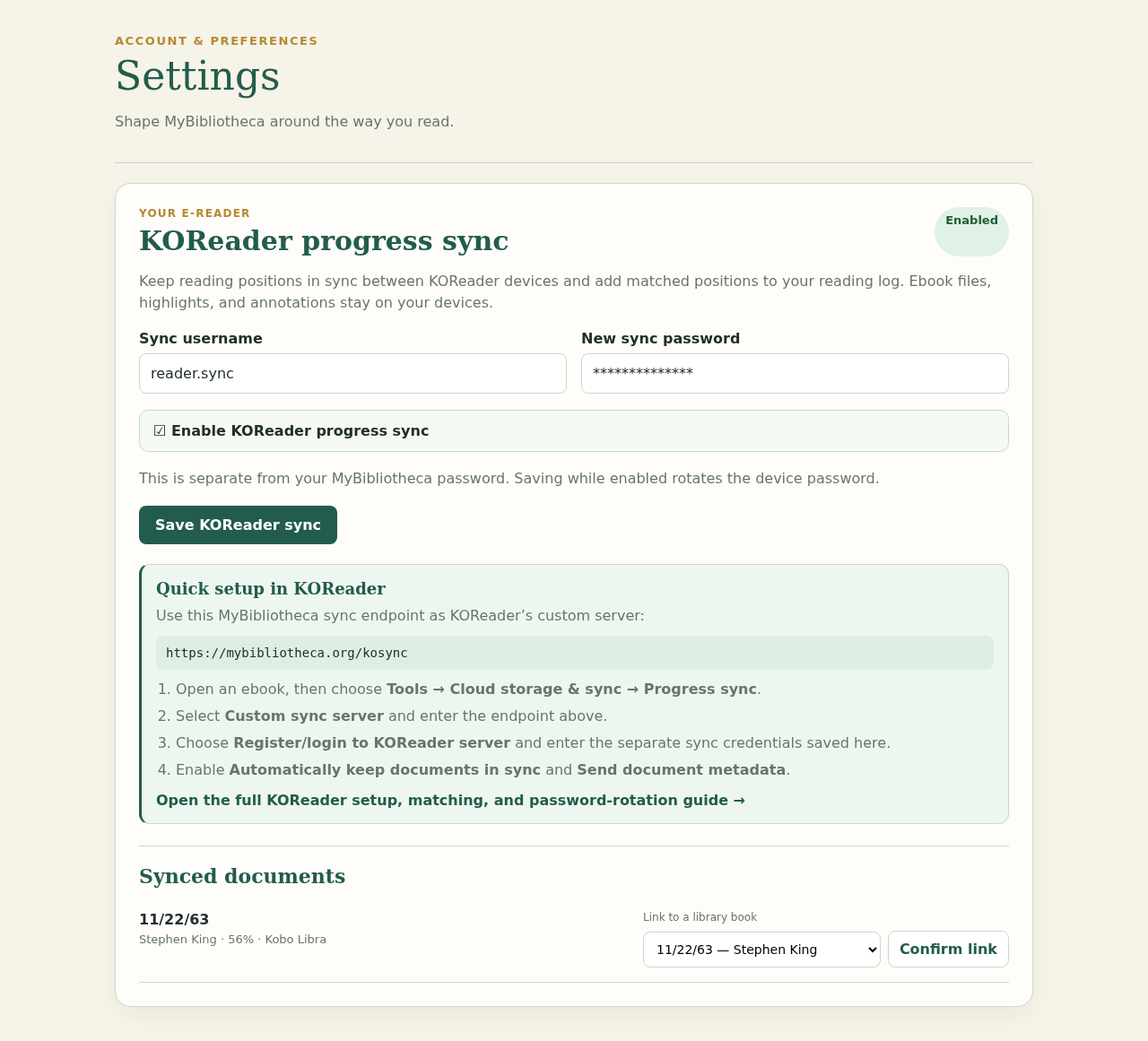
- In Settings → KOReader sync credentials, enable sync, create a separate username and password, and save. These credentials also work with the KOReader highlights plugin.
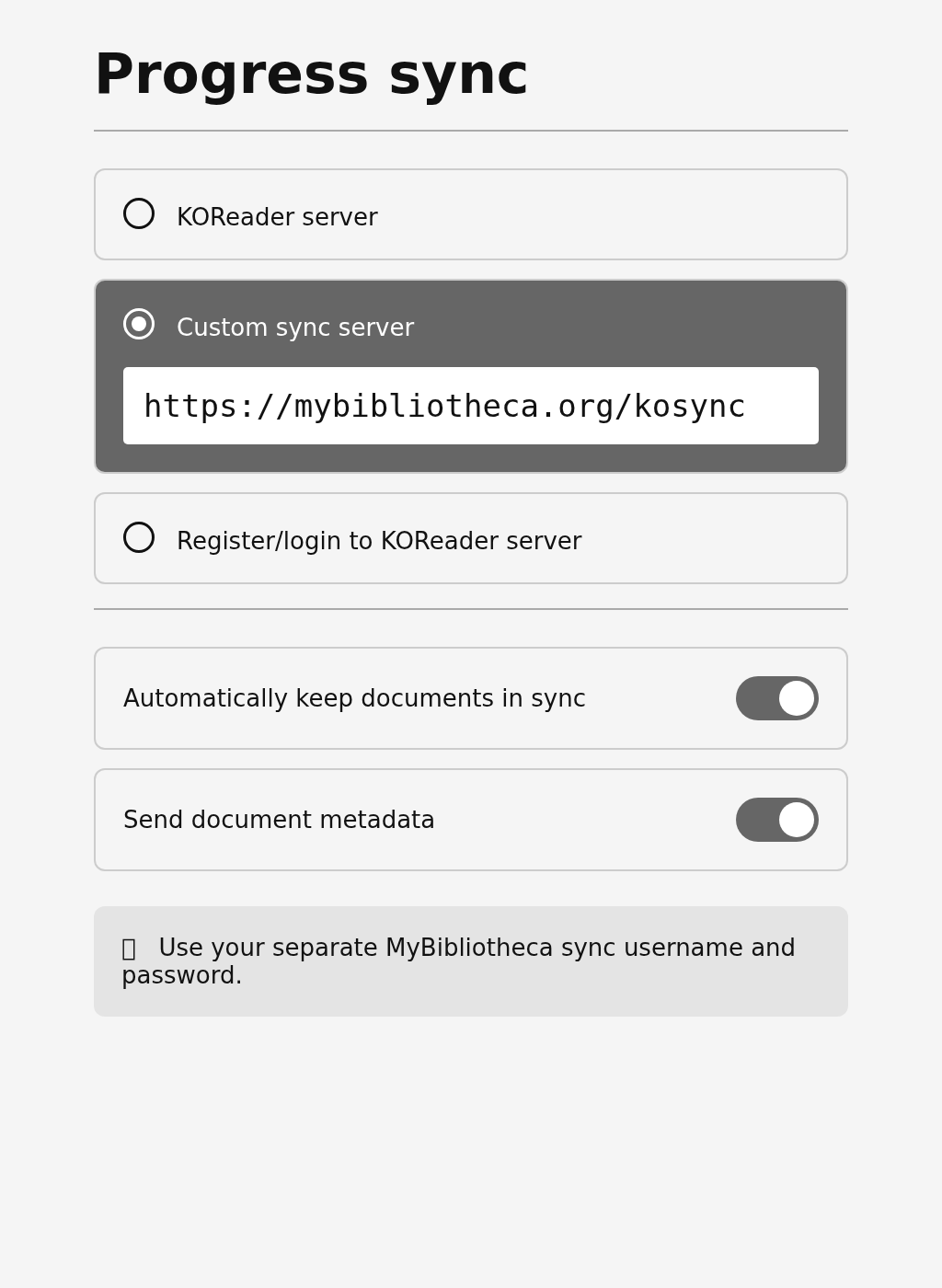
- In KOReader, open an ebook and choose Tools → Cloud storage & sync → Progress sync.
- Choose Custom sync server and enter https://mybibliotheca.org/kosync.
- Choose Register/login to KOReader server and enter the separate MyBibliotheca sync credentials.
- Turn on Automatically keep documents in sync and Send document metadata. The metadata setting lets MyBibliotheca receive the title and author instead of showing Unnamed KOReader document.
- In KOReader’s Network settings, turn Wi-Fi on and keep it enabled. Automatic sync cannot work while the device’s Wi-Fi is off.
- Push progress from this device now. Return to MyBibliotheca Settings to review the synced document and confirm a library match if it was not matched automatically.
Keep Wi-Fi enabled in KOReader’s Network settings. Auto sync still needs an active Wi-Fi connection to reach MyBibliotheca.
Make the page number match your ebook
- Open the MyBibliotheca book page for the same book and open its editing details. Find Edition page count, usually near the lower part of the book details page.
- Enter this ebook edition’s page count in MyBibliotheca. Different editions can have different totals.
- Save the book details, then push progress from KOReader again. MyBibliotheca uses your saved edition page count to turn the KOReader percentage into the page position shown in your library.
If the page number in MyBibliotheca looks wrong, do not panic and do not change your reading history. Check the Edition page count first; it is the usual cause.
What this sync does
Progress sync shares an ebook’s position across devices. After you link it to a MyBibliotheca book, positions also enter its private reading history.
Progress sync does not send ebooks, highlights, or notes; use the KOReader plugin for annotations. Both integrations use KOReader credentials, not your MyBibliotheca password. Website positions cannot sync back because KOReader requires an in-book location.
Use a public HTTPS address for your MyBibliotheca server. Do not enable certificate-verification bypasses on your e-reader unless you understand and accept the security risk.
Create your KOReader sync credentials
- In MyBibliotheca, open Settings and choose KOReader progress sync in the Reading area.
- Turn on Enable KOReader progress sync.
- Choose a sync username and a new password with at least 12 characters. These are separate from the username and password you use to sign in to MyBibliotheca.
- Choose Save KOReader sync. Keep the displayed custom-server address nearby; it normally ends in /kosync.
A sync password is shown only while you type it. Save it in a password manager before setting up another device.
Connect a KOReader device
- Open an ebook in KOReader. Progress Sync is available from the reader menu, usually Tools → Cloud storage & sync → Progress sync; wording can vary slightly by KOReader release.
- Choose Custom sync server and enter the exact MyBibliotheca server address from Settings, including /kosync. Do not add /users/auth or /syncs/progress.
- Choose Register/login to KOReader server and enter the separate sync username and password you created in MyBibliotheca. Create the credentials in MyBibliotheca first; registration from the device is intentionally unavailable.
- Turn on Automatically keep documents in sync. Turn on Send document metadata too—this allows MyBibliotheca to suggest title and author matches.
- Keep Wi-Fi turned on in KOReader’s Network settings. Automatic document sync does not run when Wi-Fi is disabled, even if the auto-sync option is enabled.
- Use Push progress from this device now for the first test. Open the same ebook on a second configured KOReader device and use Pull progress from other devices now to confirm the location arrives.
Use the same server and sync credentials on each device. KOReader also needs the ebook file on each device.
Match a KOReader ebook to your library
- After the first successful push, return to MyBibliotheca Settings → KOReader progress sync and find the ebook in Synced documents.
- If KOReader sent a title and author and exactly one library book matches, MyBibliotheca links it automatically. Check the title, author, and edition in Settings before relying on future updates.
- Choose a different library entry from the list when the automatic match is wrong, when editions differ, or when the title is shared by multiple books.
- For an ambiguous or unmatched document, choose a library entry and select Confirm link. The current KOReader percentage is added as a position-only reading entry; future accepted KOReader updates keep that book’s position current.
If the title or author is missing, enable Send document metadata, push again, then link it to a book in your library.
Rotate or disable the sync password
- Open Settings → KOReader progress sync.
- Leave the feature enabled, keep or change the sync username, and enter a new password. Choose Save KOReader sync.
- On every KOReader device, open Progress sync and sign in again with the new password before the next automatic sync.
- If a device is lost, disable KOReader progress sync immediately. Its old credentials stop working. Re-enable it later with a new password when you are ready to reconnect trusted devices.
Rotating the password does not delete existing device locations or document links. It only invalidates the old sync secret.
When positions disagree
An older KOReader position will not replace a newer web-entered one. KOReader does not send when an offline page turn happened, so the server’s receipt time determines which update is newer.
MyBibliotheca never marks a book Finished just because KOReader reaches 100%. Review and finish books yourself when that reflects your reading.
Troubleshoot a connection
- Confirm the address is your public HTTPS MyBibliotheca address followed by /kosync. A private LAN hostname usually will not work away from home.
- Check the sync username and password, not your normal MyBibliotheca sign-in details. After a rotation, update every device.
- Make sure the integration is enabled in Settings. Disabling it deliberately returns an authorization error to devices.
- For a missing match, enable Send document metadata, push once, then refresh Settings and link the document manually if needed.
- If the percentage is right but the page number is wrong, check that Edition page count in the MyBibliotheca book details matches the total pages shown by this exact ebook edition.
- If a page number moves backward, an older device may have sent an older position. Check which device is online, keep Wi-Fi enabled, and push again from the device with the newest progress.
- If two devices appear to disagree, use Pull progress from other devices now after confirming both are online. Avoid repeatedly pushing from an older offline device until you have reviewed its position.