10 MyBibliotheca Features Worth Finding Beyond the Basics
11 minutes read
The November feature roundup covered the big parts of MyBibliotheca. This time I want to open the drawers. These ten smaller features are useful precisely because they solve particular reading problems: a forgotten book, a late-night session, a highlight that will not match its edition. Each heading has a stable link you can save or share.
- The books waiting for you
- A TBR order you control
- A streak that understands your timezone
- Book spans on the month calendar
- The books behind a heatmap day
- A recap card made in your browser
- Manual matching for Readwise books
- KOReader highlights that wait for Wi-Fi
- A book's highlights as a file
- A CSV backup of your reading history
1. The books waiting for you
A TBR can become a parking lot. In My TBR, Waiting for you brings back a few unread books that have been there at least 30 days. Books marked Up next and books by authors you have rated highly can appear first. A smaller reminder appears on the dashboard when there is something to revisit.
I find this more useful than a generic “you have 240 unread books” number. Imagine adding a novel in August because you loved its author's previous book, then forgetting it by November. This view gives that novel another chance without treating every old TBR entry as equally urgent. It does not decide for you; it simply puts a few candidates back in sight. Learn how My TBR works.
2. A TBR order you control
If you already know what is next, set My TBR's sort to Manual order. On desktop, drag a book by its handle. On a phone or with a keyboard, use Move up and Move down on its card. The order is one shared queue for unread books. Custom lists and filters show views of that queue, rather than keeping separate hidden orders.
That detail matters when you make a “winter reads” list and later move one book to the top of your main TBR. You will see the same relative order wherever that book appears. Use lists to narrow the view and the manual queue to express priority. If you want a surprise instead, Pick my next book respects the filters you have set. See the TBR controls.
3. A streak that understands your timezone
Reading at 11:45 p.m. should land on the day you actually read. In Settings, you can choose your account timezone; MyBibliotheca uses it when assigning late-night sessions to calendar days. A day counts toward a streak when it has a dated reading log with pages, minutes, or both.
There is also a way to carry in a streak from before you joined. During onboarding, enter its length and say whether you have read today. You can change that starting streak later in Settings. It remains separate from real sessions, so clearing it will not erase logged pages or minutes. This is useful when switching journals mid-habit, and it keeps the origin of the number clear. Read the streak and timezone guide.
4. Book spans on the month calendar
The month view in Stats does more than mark finished books. It can show a colored bar from a book's start date to its finish date, or through today if the book is still in progress. Arrows at the ends tell you when the span continues outside the visible month. Covers mark starts, finishes, and DNFs, while a dot marks a day with logged reading.
This is the view I would use to remember how a book fit into a month. A long fantasy novel might stretch across three weeks beside two short books finished in an afternoon. Choose a day to see its books, then open a book's page for the details. Dates you enter or import power the spans; the calendar does not invent a start date from a finish date. Explore the reading calendar.
5. The books behind a heatmap day
The dashboard's year heatmap is an overview, but each past day can tell a smaller story. Hover or tap a day to see its page and minute totals and up to four books from that day's reading. If more books were involved, the tooltip shows how many others there were.
A dark square can mean a long afternoon with one book or a few short sessions across several books. The day detail gives the color some context without sending you to a separate report. Future dates do not respond, and the view reflects sessions you actually logged. If you missed a day in your journal, add its session to make the history more complete. Learn about logging sessions.
6. A recap card made in your browser
A finished book can become its own recap card. For a broader look, make a card for this month, this year, or all time. You can choose which totals to show, including books finished, pages, listening minutes, and a reading streak, then choose a style and download a PNG.
The privacy detail is easy to miss: the image is composed in your browser. MyBibliotheca does not upload or save the generated card. You decide whether to keep it, send it to a friend, or post it elsewhere. A finish date and rating make a one-book card more complete, but sharing is always your choice. See how to make a reading recap.
7. Manual matching for Readwise books
Readwise can bring your saved highlights and notes into MyBibliotheca, but imported records do not automatically create library books. An automatic link needs one matching title and author, ignoring case and extra spaces, or one matching title when the Readwise record has no author. Covers, ISBNs, and fuzzy guesses are not used for this match.
That restraint is helpful when you own two editions of the same title. If a record cannot be matched safely, open Books waiting to be matched in Settings. Choose the right library book and confirm the link, or leave it unmatched for now. Linked annotations appear on the book page; the Readwise originals remain in Readwise, and syncing is one-way. Readwise requires its own account and access token. Read the matching guide.
8. KOReader highlights that wait for Wi-Fi
The separate MyBibliotheca highlights plugin for KOReader can send annotations directly, without Readwise. Its Auto-push highlights setting is off by default. When you turn it on and the device is online, the plugin waits until you have gone ten seconds without editing or turning a page, then batches the changes. Offline changes stay pending and can upload after you reconnect with the book open or reopen it online.
That pause makes sense during a note-heavy chapter: a sentence you are still editing should not trigger an upload on every keystroke. A failed upload retries, and Send this book's highlights gives you a manual retry. Closed books are not uploaded in the background, so check the plugin when an annotation seems missing. It uses dedicated KOReader sync credentials, not your website password. Follow the KOReader highlights guide.
9. A book's highlights as a file
On a library book's page, you can download its highlights and notes as Markdown or plain text. The file includes the book title and author, your book notes, and linked annotations from Readwise, KOReader, and manual entries. That gives you a portable, readable copy focused on one book.
I would use it after finishing a book I expect to revisit: save the text beside a personal essay draft, or search it later without opening the app. The export contains the material linked to that book, so check an unmatched Readwise or KOReader record before assuming it is absent. Learn about linking Readwise highlights and KOReader notes.
10. A CSV backup of your reading history
The book-level text export is for passages. The broader Download my data (CSV) control in Settings is for your reading record. It includes your profile, library books, statuses, ratings, notes, start and finish dates, and reading logs. It does not include your password or login tokens. The file is generated when you request it and is not saved as an export on MyBibliotheca's servers.
A backup is especially useful before a large import, a cleanup, or a move to another system. Store it somewhere private because it may contain the same candid notes you would keep in a paper journal. Follow the data export guide.
These are the details that make a reading journal feel more personal to me. If one caught your eye, use its section link to come back later, or explore MyBibliotheca and try it with a book you already know.
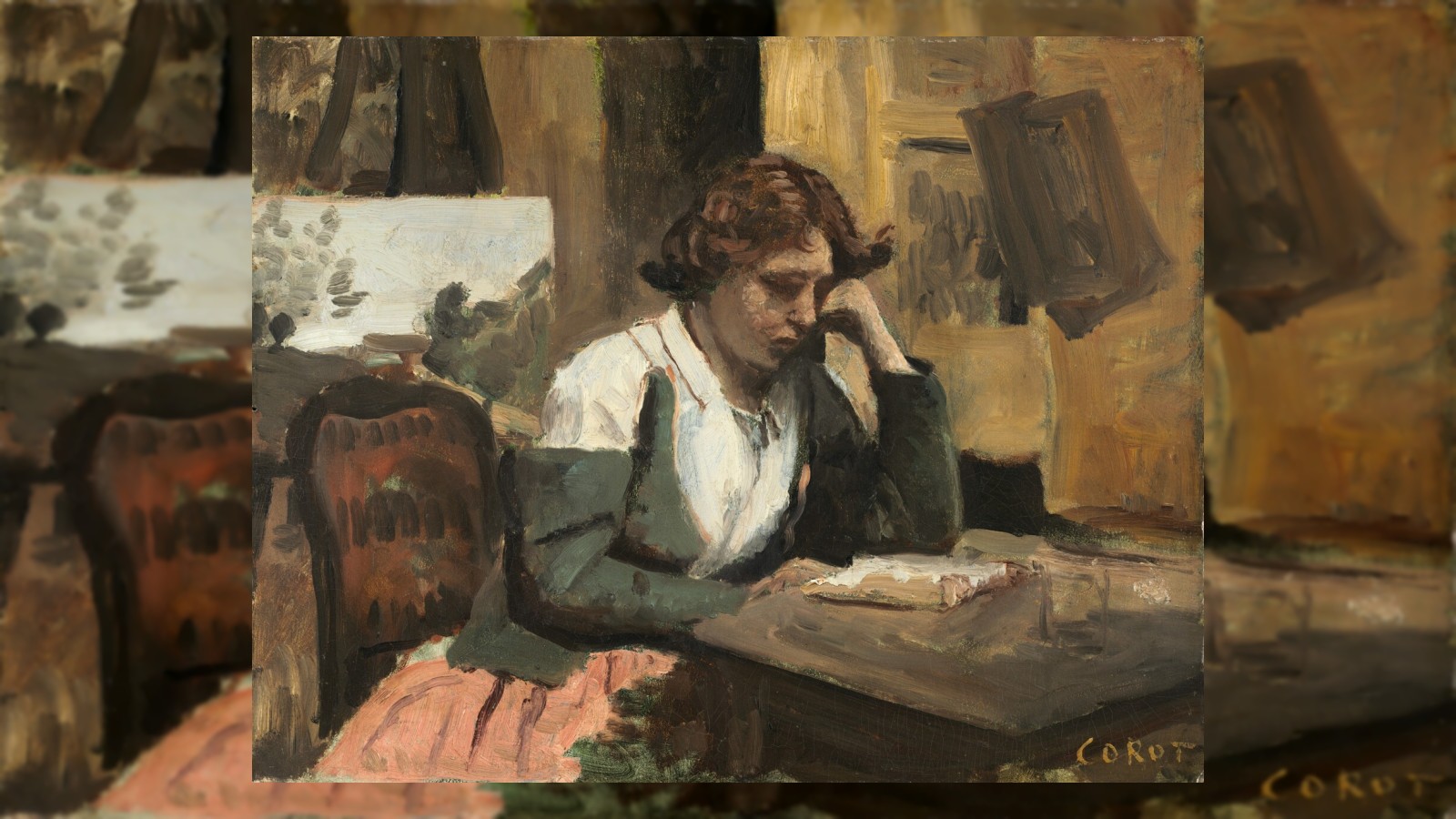
Feature image: Jean-Baptiste-Camille Corot, Woman Reading in the Studio, c. 1868. National Gallery of Art. The museum identifies the image as free and in the public domain. Artwork and rights information.