Make a recap for one finished book
- Open a book whose status is Finished.
- Choose Make a recap card for this book or Recap this book.
- Wait for the preview to render, then download the PNG when it looks right.
Make a monthly or yearly recap
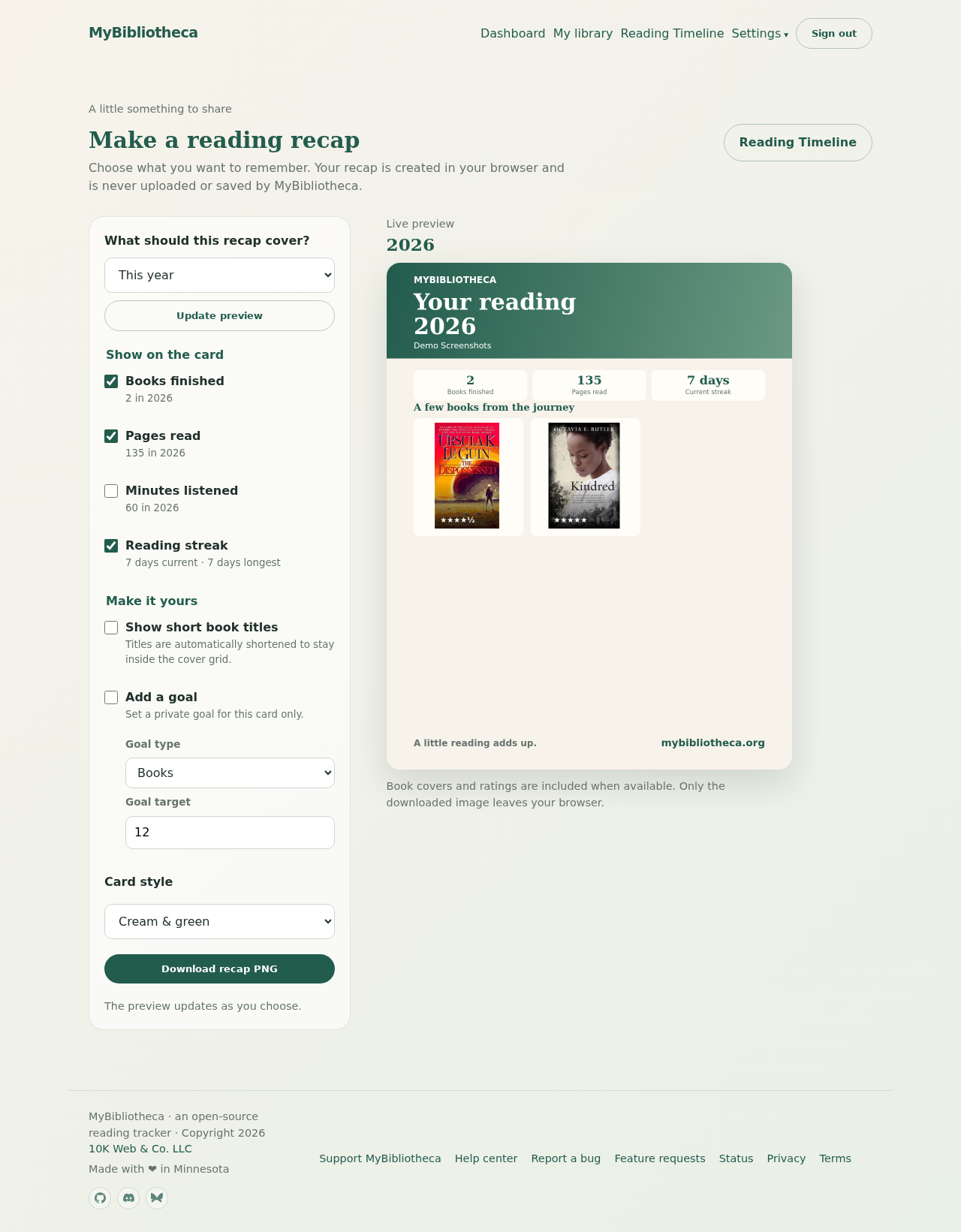
- Open Make a reading recap from the dashboard.
- Choose This month, This year, or All time, then select Update preview if you changed the period.
- Toggle books finished, pages read, minutes listened, reading streak, short titles, or a private goal.
- Choose one of the three card styles and download the recap PNG.
Your privacy in the recap tool
The recap is created in your browser. MyBibliotheca does not upload or save the generated image; only the file you choose to download leaves the browser.
Good to know: Book covers and ratings are included when available. Add a finish date and rating to make a finished-book card feel more complete.