Install MyBibliotheca

Help center Account and help

Account and help

Install MyBibliotheca on Android or iPhone

Add MyBibliotheca to your Home Screen for an app-like window, one-tap access, and offline reading tools.

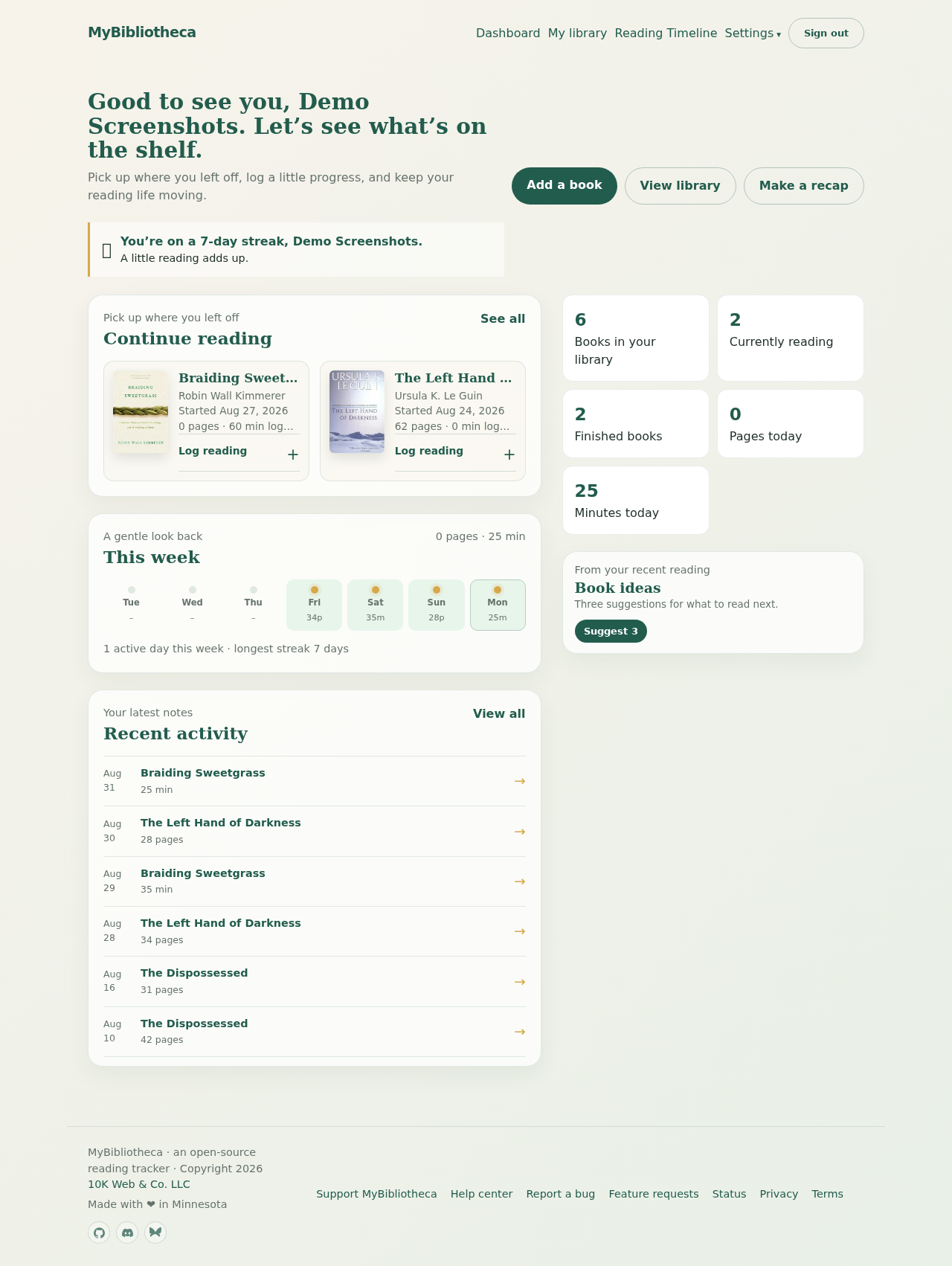
The real MyBibliotheca dashboard with current books, weekly reading, totals, and recent activity
The installed app opens into the same MyBibliotheca dashboard, without the browser controls around it.

Install from your account menu

  1. Sign in to MyBibliotheca in the browser on the phone or tablet where you want the app.
  2. Tap your initial in the top-right corner.
  3. Choose Install app. MyBibliotheca will use the installation flow available on your device.

Keep in mind: Install app is hidden when MyBibliotheca is already running as an installed app. It may also be unavailable in a private browsing window.

On Android

  1. Open MyBibliotheca in Chrome, Edge, Samsung Internet, or another browser that supports web app installation.
  2. Tap your initial and choose Install app.
  3. When Android shows the browser’s installation prompt, choose Install.
  4. If the prompt is not ready, follow the on-screen fallback: open the browser menu and choose Install app or Add to Home screen.

Good to know: The exact browser-menu wording varies by browser and Android version.

On iPhone or iPad

  1. Open MyBibliotheca in Safari and sign in.
  2. Tap your initial and choose Install app to see the instructions for your device.
  3. Tap Safari’s Share button, then choose Add to Home Screen.
  4. Confirm the name and tap Add.

Keep in mind: Apple requires Home Screen web apps to be added through the browser’s Share menu; a website cannot open the final iOS installation prompt itself.

Open and remove the app

After installation, open MyBibliotheca from its icon on your Home Screen or app drawer. It uses your existing account and opens in its own app-like window. Your saved library and current reads are available offline after the app has downloaded them, and changes sync when you reconnect.

To remove it on Android, touch and hold the icon and choose Uninstall or Remove. On iPhone or iPad, touch and hold the icon, choose Remove App, then Delete App. Removing the icon does not delete your MyBibliotheca account or library.

If Install app does not appear

  1. Make sure you are using a normal browser tab rather than private or incognito browsing.
  2. Reload the page while connected to the internet, then open the initials menu again.
  3. On iPhone or iPad, use Safari. Some other iOS browsers do not expose Add to Home Screen.
  4. If the app is already installed, look for the MyBibliotheca icon on your Home Screen or in your app library.