Private by default
New libraries are private. Until you enable a public page, other people cannot browse your library through MyBibliotheca. Your email address, account details, and private notes stay private.
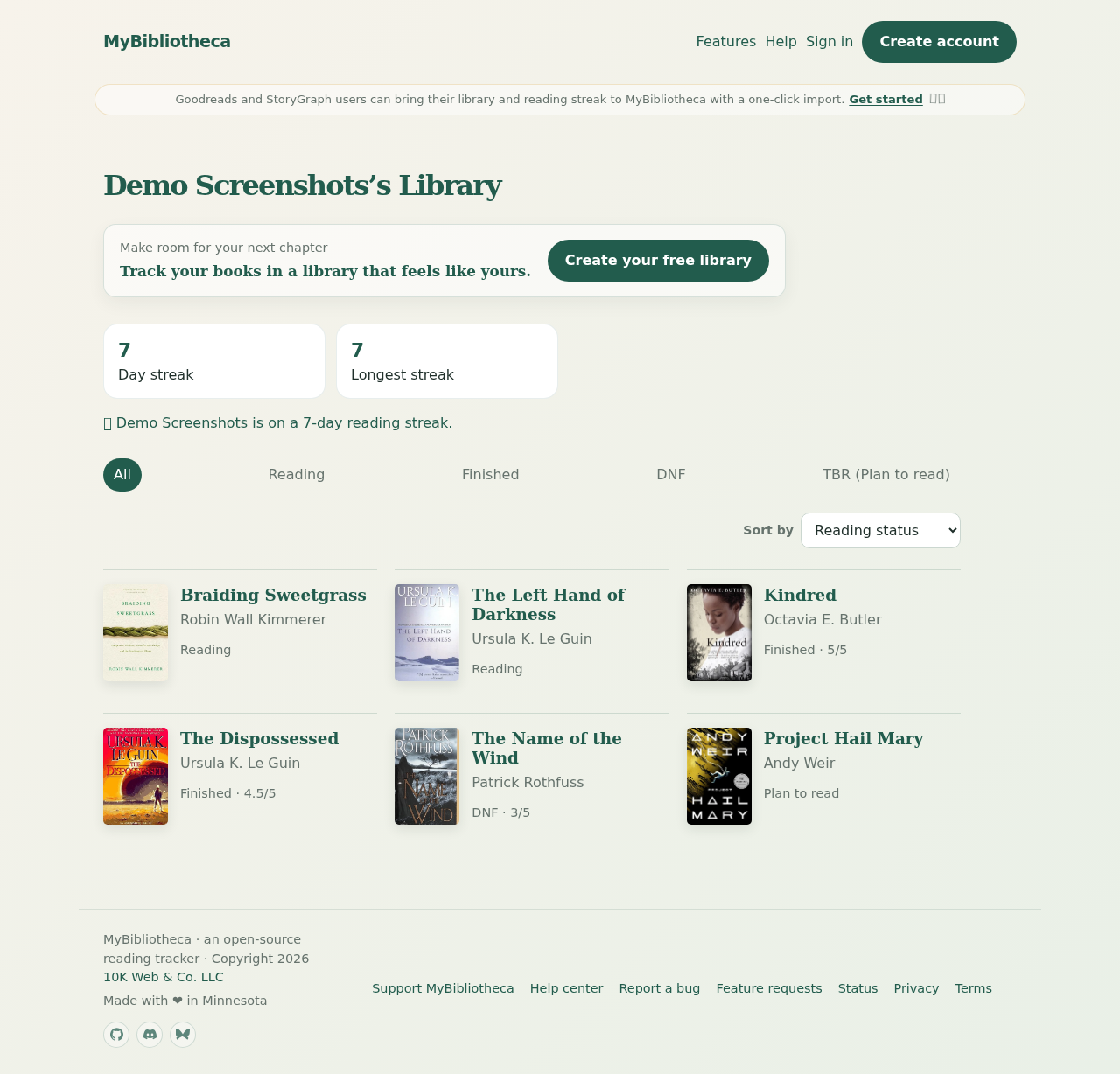
Turn on a public page
- Open Settings and find Public page.
- Choose Make my public page live.
- Optionally choose Include my book ratings and Include my reading streak.
- Save public page settings, then open the link shown in the section to preview it.
Turn sharing off
Return to Settings, clear Make my public page live, and save. The public URL stops being live. You can turn it on again later.
Keep in mind: Public pages show your display name, books, and reading statuses. Ratings and streaks are opt-in; private notes and your email are never included.