Export your file first
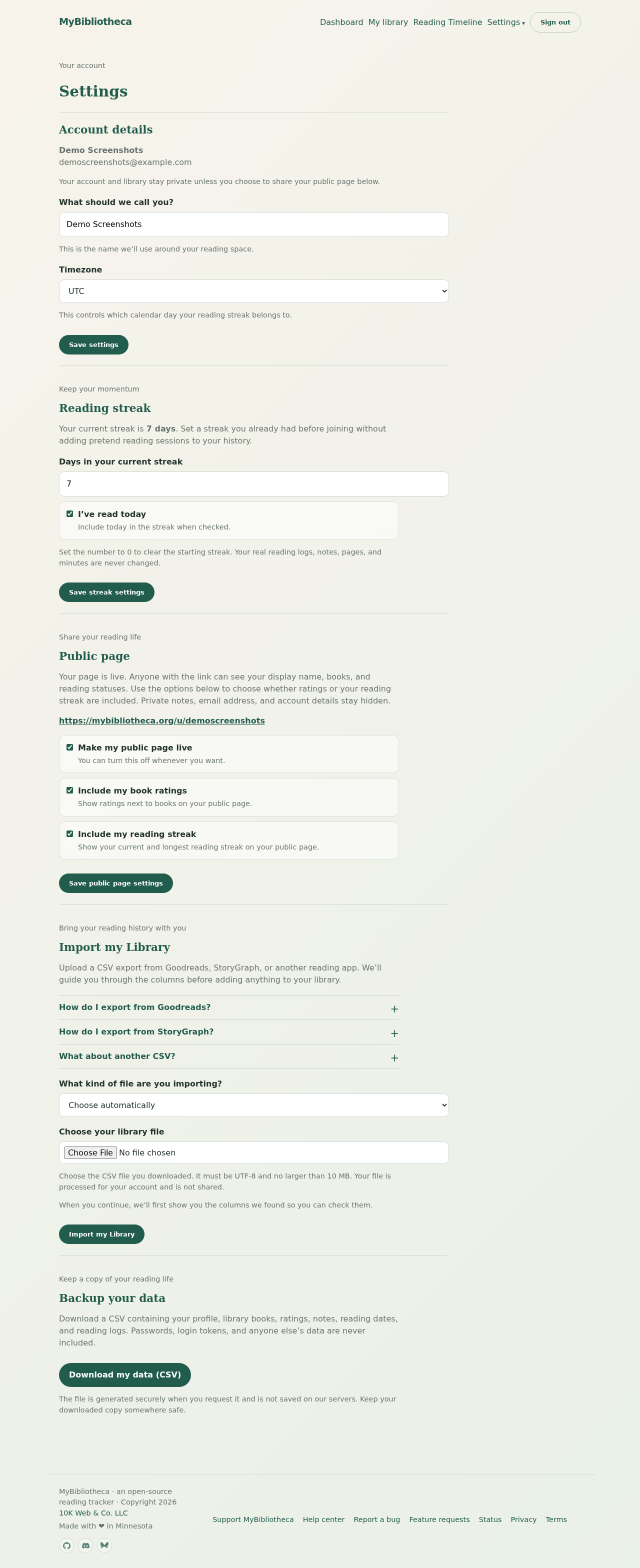
MyBibliotheca imports CSV files. Goodreads exports are available from My Books → Tools → Import and export. StoryGraph exports are available from Manage Account. If you are importing another service, export a CSV with at least a title column.
The file must be UTF-8 and no larger than 10 MB. Keep the original export as a backup until you have checked the result.
Upload and review the columns
- Open Settings and find Import my Library.
- Choose Goodreads, StoryGraph, or Choose automatically, then select your CSV file.
- Choose Import my Library. The first pass only stages the file; nothing is added yet.
- Review the detected columns. Map title, author, ISBN, status, rating, notes, started date, and finished date where those columns exist.
- Open Preview the detected values if you want to check a few rows, then choose Import my Library again to finish.
How dates and statuses come across
Goodreads provides a Date Read value rather than separate start and finish dates, so MyBibliotheca uses it as the finished date. Status labels are normalized into Up next, Plan to read, Reading, Finished, and DNF when the source provides a matching status. Rows with a title but no ISBN can still be imported.
Good to know: If a column does not apply, choose Do not import. Unmapped CSV columns are left untouched and do not block the import.