What an ISBN scan does
An ISBN is the number printed above a book’s barcode, usually on the back cover. Scanning it searches for that exact edition, which helps MyBibliotheca find the right cover, page count, and publication details.
The scanner works in the MyBibliotheca app and in a supported browser that can use your camera. You will be asked to allow camera access the first time.
Scan and add a book
- Open My library and choose Add a book.
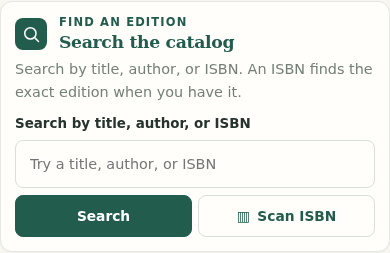
- Choose Scan ISBN next to the catalog search box.
- Hold the barcode steady inside the camera frame in good light. The ISBN is filled in automatically and the catalog search begins.
- Check the result, choose the reading status, and select Add to my library.
If the scanner has trouble, move closer, avoid glare, and keep the barcode level. You can always type the 10- or 13-digit ISBN into the same search box.
Use the ISBN field in manual entry
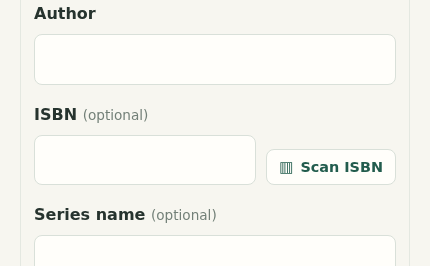
Open Enter a book manually, then choose Scan ISBN beside the ISBN field. Add the title and any other details you want to keep.
Camera access can be blocked by your browser or device settings. Allow access for MyBibliotheca, or enter the ISBN manually if scanning is unavailable.